
Parking and Resuming a Cart
Park an in-progress cart and pick it up later, including from another device in the same store.
Carts persist in Omnium until they are checked out or deliberately deleted. This means a sale can be paused at any point — to serve another customer, hand the cart to a colleague, or continue from a different device — and then resumed exactly where it left off.
This page covers how to park a cart, how to find it again from the Carts list, and how to delete a cart you no longer need.
Prerequisites
- You are signed in and the device has completed Initial Device Setup.
- An active cart exists in the cart panel.
Parking a cart
Parking a cart clears it from the panel without deleting it. The cart remains saved and is visible in the Carts list.
- Open the cart panel (tap the floating cart button if it is not already open).
- Tap the overflow menu (⋮) in the top-right corner of the cart panel.
- Tap New Cart.
- A snackbar confirms Cart stashed successfully. The cart panel clears and shows No items in cart, ready for a new sale.
Parking a cart does not delete it. The cart is saved and can be resumed at any time from the Carts list, including from another device in the same store.
Finding and resuming a parked cart
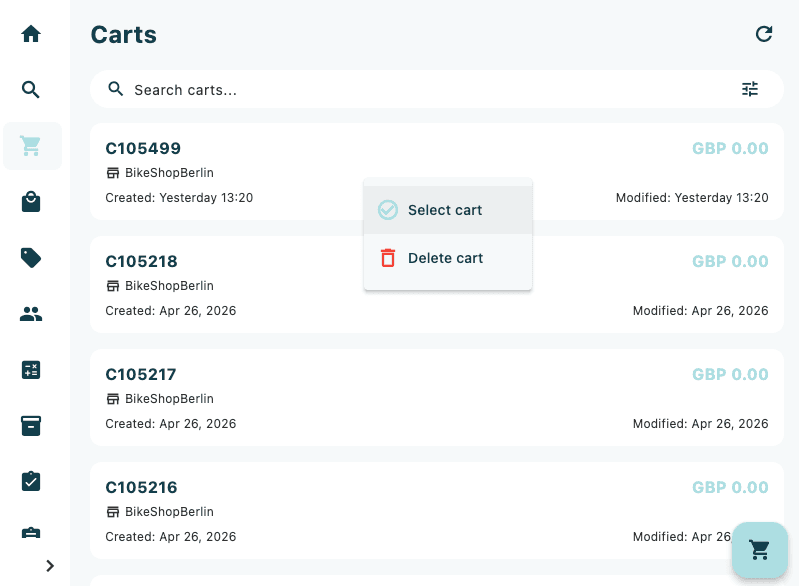
- Tap Carts in the main navigation sidebar. The Carts page opens showing all saved carts for your store.
- Use the Search carts… bar to filter by cart ID or customer name. Results update automatically as you type.
- Tap the tune icon inside the search bar to open the filter drawer for more precise filtering (see Filtering the cart list below).
- Tap anywhere on a cart card to open the context menu.
- Tap Select cart. The cart loads and becomes the active cart.
- A snackbar confirms Cart [ID] selected. The selected cart shows an accent-coloured border in the list.
- Open the cart panel (tap the floating cart button) to continue the sale.
Reading a cart card
Each cart card shows:
| Element | Description |
|---|---|
| Cart ID | Shown in bold at the top left |
| Total | The current cart total in the billing currency, shown in accent colour at the top right |
| Customer | The attached customer's name, shown with a person icon (only visible if a customer is on the cart) |
| Store | The store the cart belongs to, shown with a store icon |
| Created | The date and time the cart was created |
| Modified | The date and time the cart was last changed |
The active cart (the one currently in the panel) is highlighted with an accent-coloured border and a tinted background.
Filtering the cart list
Tap the tune icon inside the search bar to open the filters drawer. The drawer slides in from the right and provides the following options:
Sort order
Choose how the list is sorted. Sort options include:
| Field | Options |
|---|---|
| Created date | Newest first / Oldest first |
| Modified date | Newest first / Oldest first |
| Cart ID | A–Z / Z–A |
| Customer name | A–Z / Z–A |
| Status | A–Z / Z–A |
| Total amount | Low to high / High to low |
| Store | A–Z / Z–A |
Date filters
- Created date — filter by the date the cart was created (from / to).
- Follow-up date — filter by a follow-up date set on the cart (from / to).
Cart filters
- Order types — show only carts of selected order types.
- Statuses — show only carts with selected statuses.
- Tags — filter by tags attached to carts.
- Sales person — filter by the salesperson assigned to the cart.
- Customer — filter by a specific customer.
- Active carts — show only carts that have not yet been converted to orders.
Active filters appear as chips below the search bar. Tap a chip to remove that filter, or tap Clear All inside the drawer to reset everything.
Deleting a cart
Deleting a cart permanently removes it. This cannot be undone.
You can delete a cart from two places:
From the Carts list:
- Tap the cart card you want to remove.
- Tap Delete cart (shown in red).
- The cart is removed and the list refreshes. A snackbar confirms Cart [ID] deleted.
From the cart panel:
- Open the cart panel.
- Tap the overflow menu (⋮).
- Tap Delete cart (shown in red).
- A snackbar confirms the cart was deleted and the panel clears.
If deletion fails, a snackbar shows Failed to delete cart: [reason]. Check your network connection and try again.
Variations
Resuming a cart from a different device
Because carts are stored server-side, any device in the same store can resume a parked cart. On the second device, navigate to Carts, find the cart using search or filters, tap it, and tap Select cart.
Cart not found
If a cart no longer exists when you tap Select cart (for example because it was deleted from another device or channel), the app shows Cart [ID] not found and refreshes the list.
Empty carts list
If the list shows No carts found, either no carts have been created yet or the current search or filter returns no results. Clear the search field and remove any active filters to see all available carts.