
Editing a Line Item
Change quantity, price, discount, or other details of an item already in the cart.
Every item in the cart can be adjusted after it has been added. Quick quantity changes are done directly on the item card with the − and + buttons. For anything more detailed — unit price, discount, tax rate, cost price, display name, or line-level flags — the Edit Order Line dialog provides a full set of fields organised across four tabs.
Item cards in the cart
Each item in the cart panel is displayed as a card showing:
| Element | Description |
|---|---|
| Product image | 50 × 50 thumbnail on the left |
| Product name | Bold, one line, truncated if long |
| Price | Current unit price; original price shown with strikethrough when a discount is applied |
| Discount badge | Discount amount and percentage shown in green when a line discount exists |
| Lock icon | Small padlock shown next to the price when pricing is locked |
| − / + buttons | Decrement and increment the quantity by one tap |
| Quantity | Current quantity shown between the − and + controls |
Adjusting quantity quickly
To change the quantity without opening the full editor:
- Tap − (remove_circle icon) to decrease the quantity by one.
- Tap + (add_circle icon) to increase the quantity by one.
The cart total updates immediately after each tap.
Tapping − when the quantity is already 1 decrements to 0 — it does not remove the item. Use the context menu to remove the line entirely.
Opening the line editor
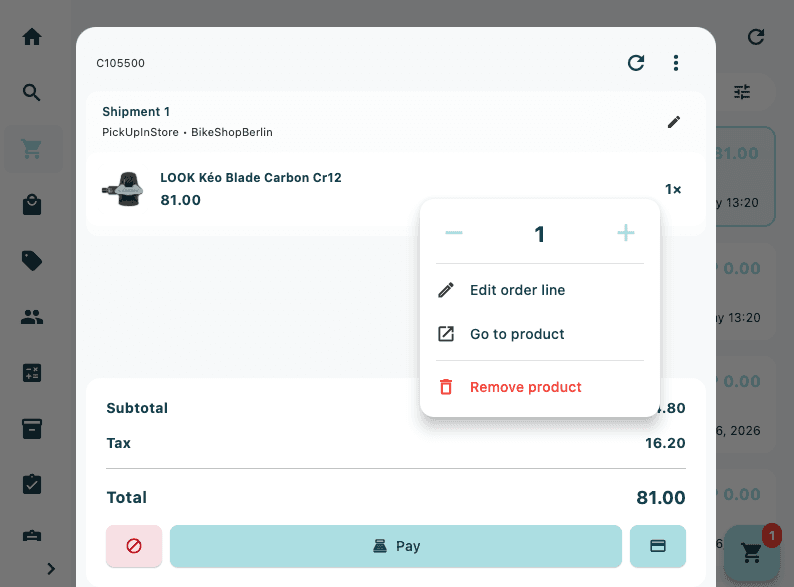
- Tap anywhere on the left side of the item card (the image and product name area).
- A context menu appears with the following options:
| Option | Description |
|---|---|
| Edit order line | Opens the full Edit Order Line dialog |
| Go to product | Navigates to the full product detail page |
| Remove product | Removes the line from the cart (red) |
- Tap Edit order line to open the dialog.
The Edit Order Line dialog
The Edit Order Line dialog contains four tabs: Price, Details, Supplier, and Options. Tap a tab to switch to it. All changes are applied together when you tap Save Changes.
Price tab
The Price tab is where you adjust quantity and all pricing values for the line.
Quantity
| Field | Description |
|---|---|
| Quantity | The number of units for this line item |
| Unit | The unit of measure (defaults to Pcs) |
Pricing
| Field | Type | Description |
|---|---|---|
| Unit Price (Inc Tax) | Editable | Price per unit including tax |
| Unit Price (Ex Tax) | Read-only | Calculated from unit price and tax rate |
| Discount % | Editable | Discount percentage applied to this line |
| Price After Discount | Read-only | Calculated discounted unit price |
| Tax Rate % | Editable | Tax rate applied to this line |
| Tax Total | Read-only | Calculated tax amount |
All calculated fields update in real time as you type.
When a price is locked, an orange Price is locked and cannot be changed banner appears below the Pricing heading. All pricing fields on this tab become read-only — only Quantity and Unit can be changed.
Cost & Margin
| Field | Type | Description |
|---|---|---|
| Cost Price | Editable | Cost price per unit (read-only if price is locked) |
| Margin | Read-only | Calculated margin (total price minus total cost) |
Totals
| Field | Description |
|---|---|
| Total (Inc Tax) | Line total including tax (quantity × discounted unit price) |
| Total (Ex Tax) | Line total excluding tax |
Details tab
The Details tab lets you override product information for this line only. Changes here do not affect the product catalogue.
Product Information
| Field | Description |
|---|---|
| Display Name | The name shown on the receipt and in the cart for this line |
| SKU / Code | The SKU or internal code for this line |
| Comment | A free-text note attached to the line (multi-line) |
Additional Details
| Field | Description |
|---|---|
| Campaign ID | Links the line to a specific campaign |
| Group ID | Groups this line with others for reporting or fulfilment |
| Location | Internal warehouse location for this item |
Supplier tab
The Supplier tab stores supplier reference data for the line.
| Field | Description |
|---|---|
| Supplier Name | Name of the supplier for this item |
| Supplier SKU ID | The supplier's SKU identifier for the item |
Options tab
The Options tab contains toggle switches that change how the line is processed.
| Toggle | Description |
|---|---|
| Gift | Marks this item as a gift |
| Virtual Product | Marks this item as a virtual (non-physical) product |
| SKU Accessory | Flags this item as an accessory |
| Create Purchase Order | Triggers a purchase order to be created for this line |
| Excluded From Promotions | Prevents automatic promotions from applying to this line |
Saving changes
Tap Save Changes (accent button, bottom-right of the dialog) to apply all edits and return to the cart. Tap Cancel to close the dialog without saving.
Removing an item
There are two ways to remove a line from the cart:
From the context menu:
- Tap the left side of the item card.
- Tap Remove product (shown in red).
By swiping:
- Swipe the item card to the left to reveal a red delete button.
- Tap the red area to confirm the removal.
The item is removed from the cart with a brief slide-out animation.