
Applying Promotions
How active promotions are applied to a cart, and how to look them up or exclude individual lines when needed.
Promotions are applied automatically to a cart by the system based on the cart's contents, the attached customer, the market, and the order type. There is no manual step to activate a promotion — the backend evaluates eligibility each time the cart is updated and adds the relevant discounts. This page explains where applied discounts appear in the cart, how to prevent a specific line item from receiving promotions, and how to use the Promotions browser to look up what is currently running.
Viewing applied discounts in the cart
When the system applies one or more promotions to the cart, the discounts are listed in the order summary section of the cart panel, above the Subtotal.
Each applied discount shows:
| Element | Description |
|---|---|
| Discount name | The name of the promotion as configured in the back office |
| Code | The coupon code, shown as Code: [code], if the promotion is code-based |
| Amount | The discount amount, shown in green with a − prefix |
If several promotions are applied, the discount list scrolls independently. A gradient fade at the top or bottom of the list indicates there are more entries to scroll to.
If you expect a promotion to apply but do not see a discount, check that the correct customer is attached to the cart (some promotions are customer-club-only) and that the required conditions are met (minimum order amount, specific products, etc.). Use the Promotions browser to verify the promotion's requirements.
Excluding an item from promotions
If a specific line item should not receive automatic promotions — for example, a sale item that has already been manually discounted — you can exclude it from promotion rules.
- Tap the left side of the item card in the cart to open the context menu.
- Tap Edit order line.
- In the Edit Order Line dialog, tap the Options tab.
- Toggle Excluded From Promotions on.
- Tap Save Changes.
Once enabled, the system will not apply automatic promotions to that line. Promotions that apply to other lines in the cart are not affected.
The Promotions browser
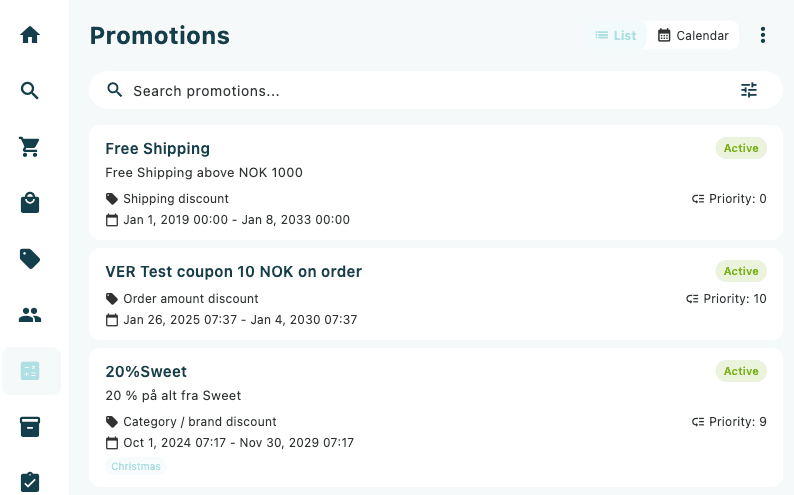
The Promotions section is a read-only reference tool for staff to check which promotions are active, upcoming, or expired. Navigate to it by tapping Promotions in the app's navigation.
The Promotions browser is a reference view — it shows promotion configurations but does not let you manually apply or remove promotions from a cart.
List view
The default view shows all promotions as a list. On wider screens, promotions are displayed in a table with five columns:
| Column | Description |
|---|---|
| Name | Promotion name and optional title; tags shown as chips if present |
| Type | The promotion type (see below) |
| Priority | Numeric priority — lower numbers apply first |
| Valid Period | Start and end dates |
| Status | Colour-coded status badge |
On smaller screens, the same information is shown as cards.
Status badges:
| Status | Colour | Meaning |
|---|---|---|
| Active | Green | The promotion is currently running |
| Upcoming | Orange | The promotion starts in the future |
| Expired / Inactive | Red | The promotion has ended or been deactivated |
Promotion types:
| Type | Description |
|---|---|
| Category / brand discount | Discount on products matching a category or brand |
| Shipping discount | Discount on the shipping cost |
| Order amount discount | Discount triggered by the cart reaching a minimum amount |
| Multi-buy / Mix&Match discount | Quantity-based discount across specific products |
| Price list promotion | Applies a specific price list to eligible products |
| Product search promotion | Discount on a defined set of products |
| Cost price promotion | Adjusts cost price for margin calculations |
| Kit promotion | Discount applied when specific product combinations are purchased together |
Calendar view
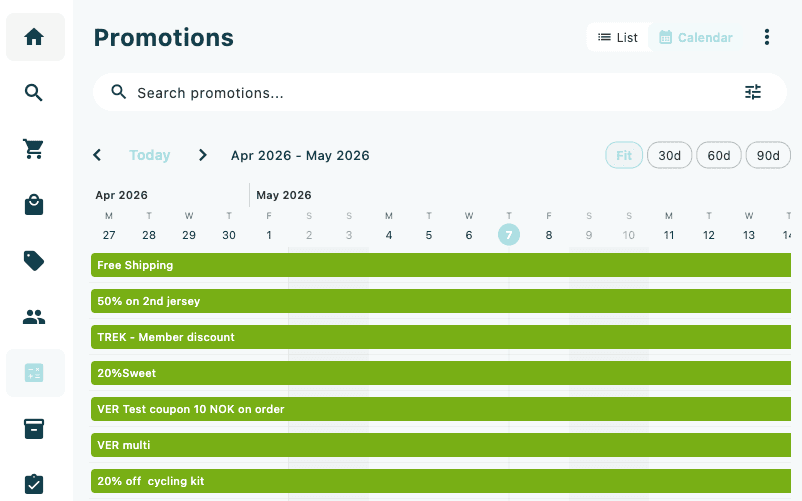
Tap the Calendar toggle (top-right of the page) to switch to a calendar view that shows promotions arranged by their active dates. Use this to see which promotions overlap during a given period.
Search and filters
Type in the search bar to filter promotions by name. Tap the filter icon (tune) to open the filters drawer. Available filters include:
- Promotion Type — filter by one or more promotion types
- Valid Date Range — show only promotions active within a specific date range
Active filters are shown as chips below the search bar. Tap a chip to remove that filter.
Promotion detail
Tap a promotion in the list or calendar to open its detail page.
The detail page is divided into a summary panel and a main content area.
Summary panel (left column on wider screens, top section on narrow screens):
| Field | Description |
|---|---|
| Status badge | Current status with expiry date if active |
| Type | Promotion type |
| Name / Description | Name and optional description |
| Affected Products | Number of products the promotion currently covers |
| Valid From / Valid Until | Active date range |
| Priority | Numeric priority |
| Can Be Combined | Whether this promotion stacks with others |
| Always Apply | Whether the promotion applies regardless of priority rules |
| Customer Club Only | Whether the promotion requires a customer-club-attached customer |
| Coupon Code | Required coupon code, if any |
| Personal Coupons | Whether the promotion uses personal (per-customer) coupons |
| Markets / Stores | Markets and stores where the promotion is valid |
| Order Types | Order types the promotion is restricted to |
| Tags | Classification tags |
Main content area:
| Card | Description |
|---|---|
| Product Targeting | Categories, brands, seasons, products, properties, and conditions that determine which items are eligible. Excluded categories, brands, and products are shown in red. |
| Reward | The discount percentage or amount awarded when the promotion triggers. |
| Rules & Settings | Additional rules such as minimum quantity, price filtering, or kit component requirements. |