
Cart Filters
Narrow the cart list using built-in filters for date, status, order type, tags, and more.
The Carts list can be narrowed using a slide-in filter panel. You can filter by date ranges, cart status, order type, tags, and other criteria to find the carts you need quickly. Active filters are shown as removable chips below the search bar so you can see and clear individual selections at a glance.
Opening the filter panel
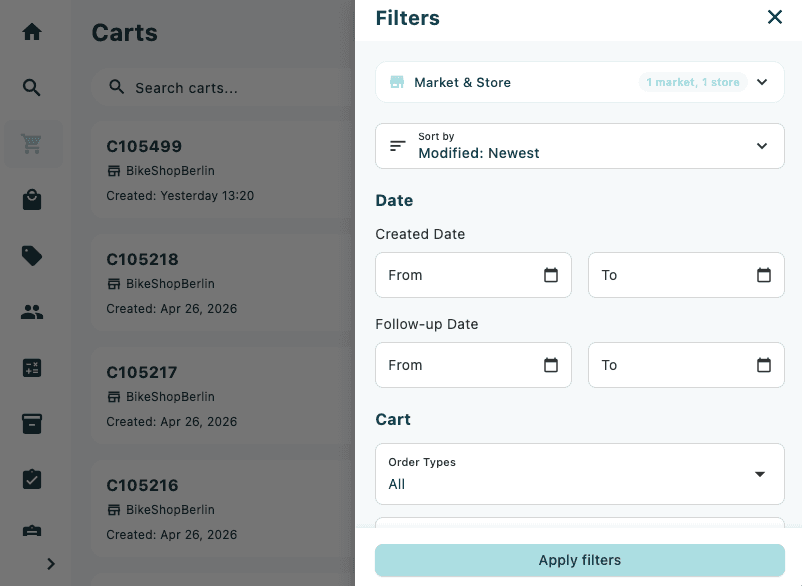
Tap the filter icon (tune icon) in the top-right corner of the Carts screen. The panel slides in from the right.
On tablets the panel is fixed at 450 px wide; on phones it takes up 85 % of the screen width.
Market / Store
The Market / Store selector at the top of the panel limits the list to a specific market or store. This setting reflects your device's home store and persists between sessions. It is not shown as an active chip in the filter row.
Sort Order
The Sort Order section controls how the cart list is ordered. Tap your preferred option — the selection takes effect when you tap Apply filters.
| Group | Options |
|---|---|
| Created Date | Newest first / Oldest first |
| Modified Date | Newest first / Oldest first |
| Cart ID | A → Z / Z → A |
| Customer Name | A → Z / Z → A |
| Status | A → Z / Z → A |
| Total Amount | Low → High / High → Low |
| Store | A → Z / Z → A |
Date section
Created Date
Use the From and To date pickers to limit the list to carts created within a specific window. Leave one or both fields blank to apply an open-ended range.
Follow-up Date
Use the From and To date pickers to filter by the follow-up date set on a cart. This is useful for finding carts that need attention within a given period.
Cart section
Order Types
The Order Types multi-select lists the order types configured for your tenant. Tick one or more types to show only carts of those types.
This selector is hidden when no order types have been configured for your tenant.
Status
Tap the Status selector to open a multi-select list. Available options:
- Draft
- New
- Sent
- Closed
- Order Canceled
Tick one or more statuses to include. When more than one is selected, the chip label shows the count (for example, Status: New, Sent).
Tags
The Tags multi-select lists the tags configured in your tenant's order settings. Tick one or more tags to show only carts carrying those labels.
This selector is hidden when no tags have been configured for your tenant.
Active Carts Only
Toggle Active Carts Only on to exclude carts that have already been converted to orders or are otherwise inactive. The toggle is off by default.
Applying filters
Tap Apply filters at the bottom of the panel to close the panel and reload the cart list with your selections.
Active filter chips
Applied filters appear as chips in the filter row below the search bar. Each chip shows what is active:
| Chip label | What it represents |
|---|---|
| Created: from – to | Created Date range |
| Follow-up: from – to | Follow-up Date range |
| Type: value(s) | Selected order types |
| Status: value(s) | Selected cart statuses |
| Tag: value(s) | Selected tags |
| Sales Person: ID | Sales person filter |
| Customer: name or ID | Customer filter |
| Active carts | Active Carts Only toggle is on |
Tap the × on any chip to remove that filter immediately without reopening the panel. The Market / Store selector is not shown as a chip.
Clearing all filters
Open the filter panel and tap Clear All in the panel header to reset every filter at once.