
Viewing the Order List
View, read, and search customer orders from POS and online channels.
The Orders section provides a full list of customer orders associated with your store. Orders can originate from in-store point-of-sale (POS) transactions or from online channels.
Reading the orders list
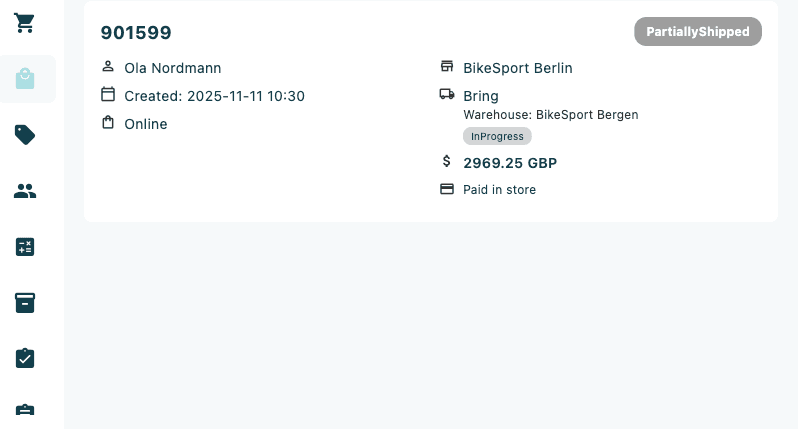
Each order entry displays the following details:
| Field | Description |
|---|---|
| Order number | Unique identifier for the order |
| Customer name | Name of the customer |
| Date and time | When the order was created |
| Order source | Pos or Online |
| Delivery method | e.g. Hent i butikk / Click & Collect |
| Warehouse | Expected collection time where applicable |
| Order total | Value in NOK |
| Payment method | e.g. Paid in store |
| Status | Current order status (see below) |
The total number of orders and the current page are displayed at the bottom of the screen. Use the navigation arrows to move between pages.
Order status labels
| Status | Meaning |
|---|---|
| New | Order received, not yet processed |
| ReadyForPickup | Order is packed and ready for the customer to collect |
| Completed | Order has been collected or fulfilled |
Searching and filtering orders
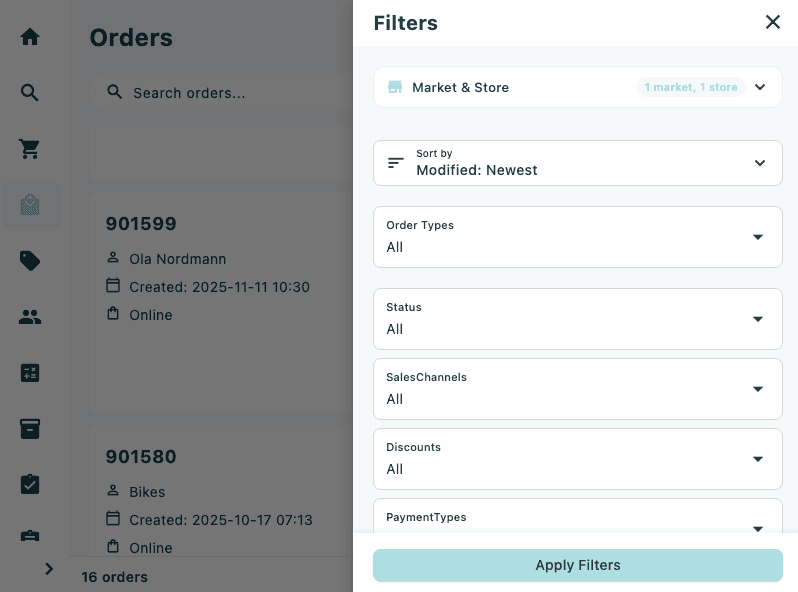
Use the search bar at the top of the screen to search for orders by order number, customer name, or other identifiers. Tap the filter icon to apply additional filters such as date range, status, or order type.