
Cancelling Order Lines
Cancel individual or multiple lines from an order.
Individual order lines can be cancelled one at a time from the line item's context menu, or several at once by selecting them first and using the action bar. The cancel modal lets you set a reason and comment — which may be required depending on your tenant configuration — and shows exactly how many units are available to cancel before you confirm.
Cancelling order lines cannot be undone from the app. Cancelled lines remain visible in the order but are shown as inactive.
Cancelling a single line
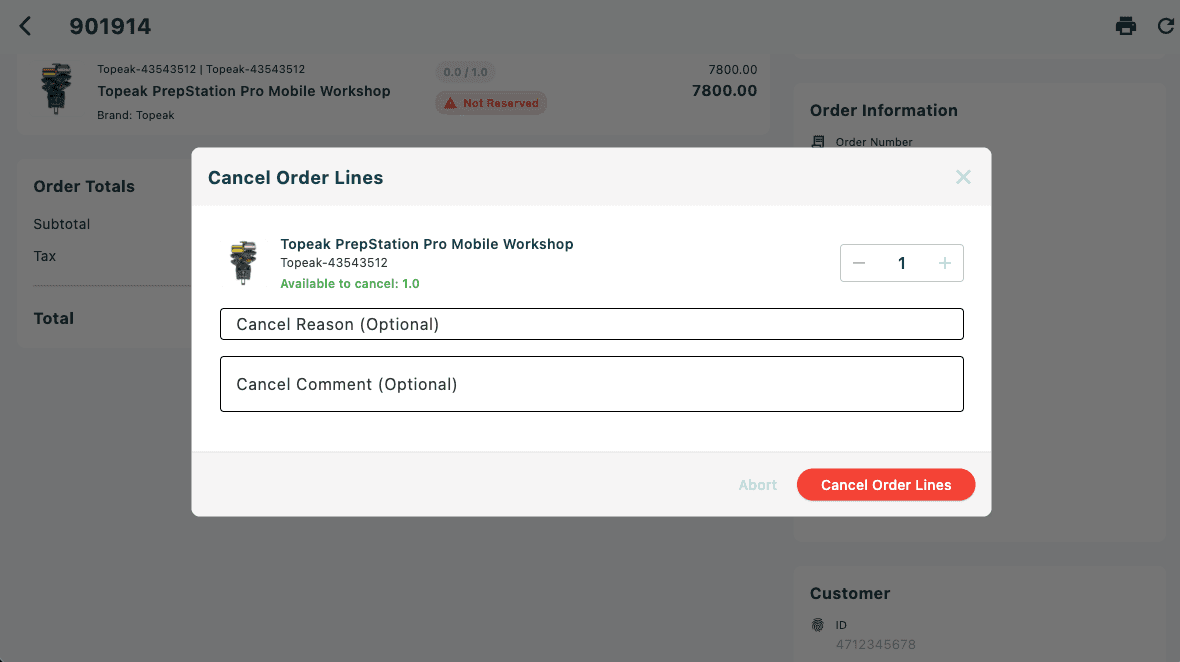
- Open the order from the Orders list.
- Tap any order line in the order lines section. A context menu appears.
- Tap Cancel order line. This option is greyed out if no quantity is available to cancel (all units have already been delivered, cancelled, or returned).
- The Cancel Order Lines modal opens showing the selected line, its product name, SKU, and the quantity available to cancel.
- The quantity selector shows the full available quantity. Use the + button to adjust if needed.
- Enter a cancel reason in the Cancel Reason (or Cancel Reason (Optional)) field. If your tenant has cancellation types configured, this is a dropdown — select the appropriate reason. Otherwise, type a free-text reason.
- Enter a comment in the Cancel Comment (Optional) field (or Cancel Comment (Required) if your configuration requires it).
- Tap Cancel Order Lines (red button) in the footer.
- On success, the modal closes and Order lines cancelled successfully appears. The order detail reloads.
Cancelling multiple lines
- Open the order from the Orders list.
- Tap the first line you want to cancel. In the context menu, tap Select order line. The line is highlighted with a coloured border and the selection action bar appears at the bottom of the screen.
- To add more lines, tap each line directly — when the action bar is visible, tapping a line toggles its selection without showing the context menu.
- When all the lines you want to cancel are selected, tap the edit icon (pencil) in the action bar. A menu appears with Cancel order lines, Return order lines, and Create replacement order.
- Tap Cancel order lines.
- The Cancel Order Lines modal opens with a default reason and comment section at the top, followed by each selected line.
Filling in the modal (multiple lines)
Default reason and comment (applies to all lines unless overridden per line):
| Field | When required |
|---|---|
| Default Cancellation Reason | If cancellation types are configured in your tenant settings, a reason is required for all lines |
| Default Cancel Comment | Required for all lines if your tenant settings require a cancel comment; optional otherwise |
Selected order lines — below the default fields, each line is listed as a card showing the product name, SKU, and available quantity.
- Lines with no available quantity (already fully delivered, cancelled, or returned) are shown at 50% opacity with the note No quantity available to cancel and cannot be cancelled.
- For lines with available quantity, the quantity selector shows the full available amount. Use the + button to adjust.
Per-line overrides — to use a different reason or comment for a specific line, tap the + Cancel Reason or + Cancel Comment button on that line's card. The override fields appear as Cancel Reason Override and Cancel Comment Override. Tap the × icon next to an override field to remove it and revert to the default.
- Tap Cancel Order Lines in the footer once all required fields are filled. The footer also shows the count of selected lines.
- On success, the modal closes, the selection is cleared, and the order detail reloads.
Clearing the selection
To deselect all lines without cancelling, tap the × (close) button on the right side of the action bar, or tap Abort in the cancel modal.
When cancellation is blocked
| Situation | What happens |
|---|---|
| All selected units already delivered, cancelled, or returned | The Cancel order line menu item is greyed out (single line) or the line is shown as inactive in the modal (multi-line) |
| Cancellation types are configured but no reason is selected | The Cancel Order Lines button remains disabled |
| Cancel comment is required but the field is empty | The Cancel Order Lines button remains disabled |
Cancellation reason types and whether a cancel comment is required are configured at the tenant level in Order Line Settings. If these fields are not visible, your tenant has not configured them.