
Adding a Payment to an Order
Capture an additional payment against an existing order using a terminal, pay-by-link, or manual payment method.
If an order is partially paid, unpaid, or requires a balance on collection, staff can record an additional payment directly from the order detail view. The Payments card shows the current payment status at a glance and opens a modal where you choose a payment method and enter the amount.
Adding payments requires the POS feature to be enabled for your device. If POS is not enabled, tapping the Payments card opens a read-only view of existing payments but does not allow new ones to be added. If POS is disabled and the order has no payments, tapping the card does nothing.
Payments card
The Payments card appears on the order detail page. It summarises the payment position at a glance before you open the modal.
Payment status badges
The card header includes a coloured badge indicating the overall payment state:
| Badge | Colour | Meaning |
|---|---|---|
| Paid | Green | The full order total has been received |
| Partially Paid | Orange | Some amount has been received but a balance remains |
| Unpaid | Red | No payment has been recorded against this order |
| Overpaid | Blue | The payments received exceed the order total |
Summary text
Below the badge, a short line summarises the amounts:
| State | Summary shown |
|---|---|
| Paid | Amount paid and currency (e.g. 299.00 NOK paid) |
| Partially Paid | Amount paid and remaining balance (e.g. 100.00 paid • 199.00 NOK remaining) |
| Unpaid | Order total (e.g. Total: 299.00 NOK) |
| Overpaid | Amount paid and overpaid amount (e.g. 350.00 paid • 51.00 NOK overpaid) |
| No payment required | No payment required |
When the order has more than one payment group, the card title shows the count: Payments (2).
Tap anywhere on the card to open the payments modal.
Adding a payment
Tap the Payments card. If the order already has payments, the modal opens on the Payments tab — tap Add Payment to switch to the form.
The form has two sections depending on what is configured for your store.
Paying by card terminal
If a payment terminal is configured for your device, a prominent Pay with card terminal button appears at the top of the modal.
- Tap Pay with card terminal.
- The app navigates to the terminal payment screen. Follow the on-screen prompts to present the card.
- Once the terminal approves the transaction, the payment is automatically recorded against the order and a confirmation message appears: Payment added successfully.
[Screenshot: The Add Payment modal with the "Pay with card terminal" button prominent at the top in dark blue, followed by a divider reading "or choose payment method", and a list of regular payment methods below.]
Paying by link (Klarna, Vipps, etc.)
If pay-by-link providers are configured (such as Klarna or Vipps), each appears as a dedicated button below the terminal button.
- Tap the provider button (e.g. the Klarna button).
- The app navigates to the pay-by-link screen for that provider.
- Enter or confirm the customer's email or phone number to send the payment link.
- Once the customer completes payment, the order is updated automatically.
Paying with a regular payment method
Regular payment methods (cash, invoice, gift card, etc.) appear in a list labelled Select Payment Method.
- Tap the payment method from the list.
- The form advances to the details screen. The Amount field is pre-filled with the remaining balance owed. Adjust the amount if needed.
- Optionally enter a note in the Comment (Optional) field (Add a comment about this payment).
- Tap Add Payment in the footer to submit.
- On success, the modal closes and Payment added successfully appears. The order detail reloads with the updated payment status.
[Screenshot: The payment details screen showing the selected payment method in a highlighted row with a "Change" button, the Amount field pre-filled with "199.00", the Comment (Optional) field empty, and the Add Payment button in the footer.]
Changing the payment method
If you selected the wrong method, tap Change in the highlighted method row. This returns you to the method selection screen and resets the amount to the remaining balance.
Validation
| Situation | Message shown |
|---|---|
| No payment method selected | Please select a payment method |
| Amount is zero or invalid | Please enter a valid amount |
| Market or store information is missing on the order | Cannot add payment: Market or Store information is missing |
The Add Payment button is disabled until a payment method is selected.
If no payment methods are configured for your store, the modal shows an empty state with the message No payment methods available. Contact your administrator to configure payment methods.
Viewing existing payments
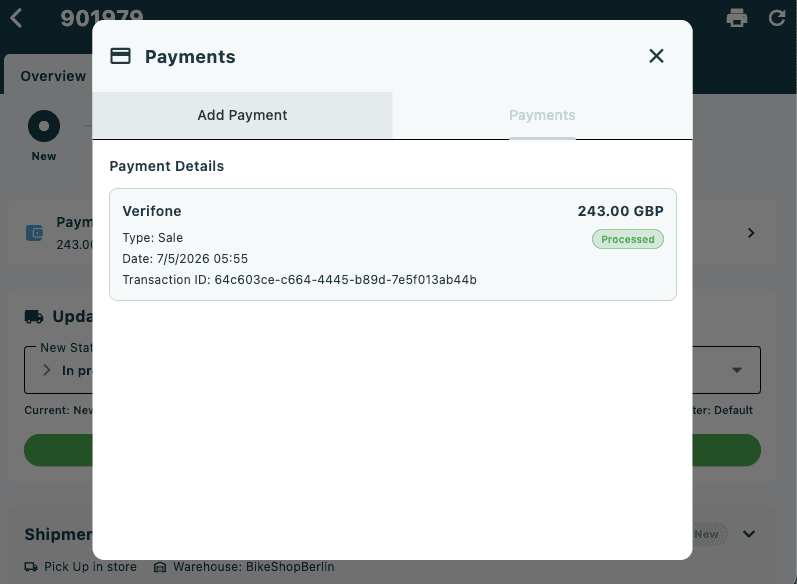
Tap the Payments card and switch to the Payments tab (or wait — if the order already has payments, the modal opens there by default). The tab shows a Payment Details list sorted newest first.
Single-transaction payments
Each payment card shows:
| Field | Description |
|---|---|
| Payment method name | The method used |
| Amount | Total amount with currency code |
| Type | Transaction type (e.g. Sale, Authorization, Capture) |
| Date | Payment or creation date — if both differ, both are shown as Created and Paid |
| Transaction ID | External reference, if available |
| Comment | Any note recorded at the time of payment |
A coloured status badge appears on the right:
| Badge | Colour | Meaning |
|---|---|---|
| Paid / Approved / Processed | Green | Payment completed successfully |
| Pending | Orange | Awaiting confirmation |
| Failed | Red | Payment was not completed |
If a payment is linked to a return order (for example, a refund), the comment appears as a tappable link. Tap it to navigate directly to the return order.
Multi-transaction groups
When multiple transactions share the same transaction ID (for example, an authorisation followed by a capture), they are grouped into a single expandable card. The collapsed view shows:
- Payment method name and net amount (captures and sales minus any credits)
- Number of transactions (e.g. 2 transactions)
- A group status badge summarising the overall state:
| Group status | Meaning |
|---|---|
| Authorized | Amount reserved but not yet captured |
| Captured | Amount fully captured |
| Partially Captured | Capture is less than the authorised amount |
| Credited | Amount fully refunded |
| Partially Credited | Amount partially refunded |
Tap the card to expand it and see each individual transaction with its type, date, status, and amount. Credit and void transactions are shown as negative amounts in red.