
Order Notes
Add and read notes attached to an order.
The Notes tab on the order detail page holds two separate note streams: Public Notes (visible to the customer and sent via email or SMS) and Internal Notes (for store-side use only). Staff can add a note, optionally notify the customer in the same step, and delete unsent internal notes when needed.
The Notes tab
On mobile layouts, tap the Notes tab at the top of the order detail page to switch to it. The tab label shows a count in brackets — Notes (N) — when there are existing notes.
Each note stream is shown as its own collapsible card labelled Public Notes (N) and Internal Notes (N). The count reflects the number of notes in that stream. Tap the section header to expand or collapse it. Sections that already contain notes are expanded automatically when the order loads.
When a section is empty and expanded, it shows No notes yet in italics.
Adding a note
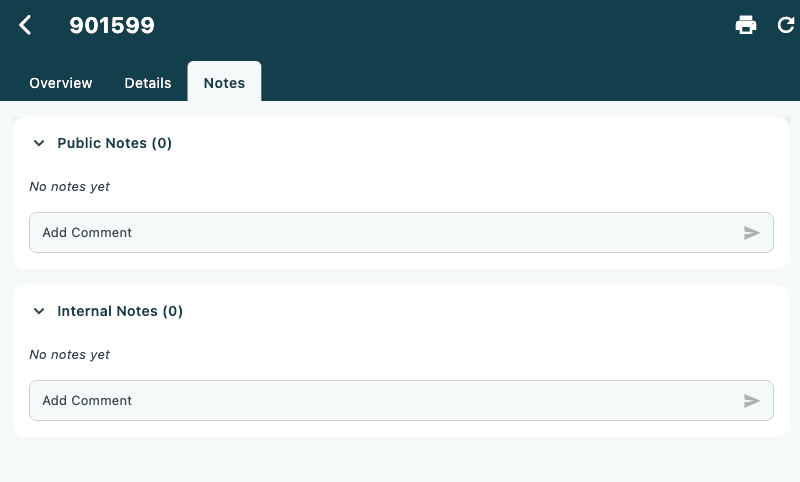
Both note sections share the same input mechanism. The steps below apply to both; differences between Public and Internal are noted where relevant.
- Expand the section you want to add a note to — Public Notes or Internal Notes.
- Tap the collapsed input bar at the bottom of the section (it shows the placeholder Add Comment with a send icon on the right).
- The input expands to show:
- Email and SMS toggle chips
- A multi-line comment field
- Cancel and a submit button
- Type the note text in the comment field.
- Tap Add Comment (or the relevant send button — see Send modes below).
- On success, the note appears at the top of the section and a Note added confirmation appears.
Public Notes require you to select at least one send mode (email or SMS) before the note can be submitted. The submit button will remain in an error state if neither is selected.
Send modes
The Email and SMS toggle chips control whether the note triggers a customer notification. Tapping a chip toggles it on or off. The submit button label changes to reflect the selected mode:
| Email chip | SMS chip | Submit button label |
|---|---|---|
| Off | Off | Add Comment |
| On | Off | Send Email |
| Off | On | Send SMS |
| On | On | Send Email and SMS |
Email fields
When the Email chip is active, the following fields appear above the comment box:
| Field | Description |
|---|---|
| Recipient address (required). Pre-filled with the customer's email if one is on the order. | |
| Cc | Optional additional recipient |
| Bcc | Optional blind copy recipient |
| Subject | Email subject line. Pre-filled with Order Number XXXXX based on the current order. |
SMS fields
When the SMS chip is active, the Mobile Number field appears. It is pre-filled with the customer's phone number if one is on the order.
Validation
The submit button is blocked and an inline error appears when:
| Situation | Error message |
|---|---|
| Public note with neither Email nor SMS selected | Please select email or SMS before sending |
| Email toggle on but the Email field is empty | Email is required |
| Email toggle on but the address is not valid | Invalid email address |
| SMS toggle on but Mobile Number is empty | Phone number is required |
| SMS toggle on but the number is not valid | Invalid phone number |
Tap Cancel to collapse the input and discard any unsaved text.
Reading existing notes
Each note is shown as a card with:
| Element | Description |
|---|---|
| Title | Shown in bold at the top-left if present; otherwise the space is blank |
| Creator | The name of the person who added the note, shown in bold at the top-right |
| Date | Timestamp below the creator name (day/month/year hour:minute) |
| Note text | The body of the note |
| Delivery badges | Shown below the text when the note was sent — an email icon with the recipient address, or a phone icon with the mobile number |
Notes are listed newest first within each section.
Deleting a note
Only Internal Notes that have not been sent via email or SMS can be deleted. Public notes and internal notes that were delivered via email or SMS do not have a delete button.
- Locate the note card in the Internal Notes section.
- If the note is deletable, a delete icon (bin outline) appears to the right of the creator name.
- Tap the delete icon.
- A confirmation dialog appears: This action cannot be undone. Are you sure?
- Tap Delete to confirm, or Cancel to go back.
- On success, the note is removed and a Note deleted confirmation appears.