
Creating a Replacement Order
Create a replacement order linked to an existing order.
A replacement order is created when delivered items need to be re-shipped or substituted — for example after a damaged delivery or when a different size or colour is needed. You select which delivered lines to replace, set the quantity, and optionally provide a replacement type and reason. The resulting replacement order is linked to the original.
Replacements can only be created for lines that have been delivered and have not already been fully replaced, returned, or cancelled.
Selecting lines to replace
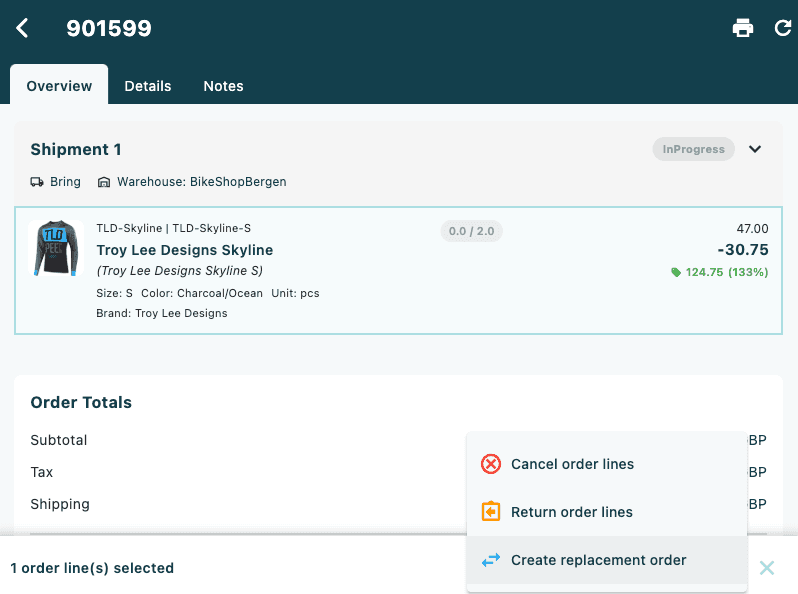
Replacement orders are created through the selection action bar on the order detail page.
- Open the order from the Orders list.
- Tap the first line you want to replace. In the context menu, tap Select order line. The line is highlighted and the selection action bar appears at the bottom of the screen.
- Tap additional lines to add them to the selection (once the action bar is visible, tapping a line toggles its selection directly).
- Tap the edit icon (pencil) in the action bar, then tap Create replacement order.
If any selected line has not been delivered yet, a warning appears and the modal does not open. If all selected lines have already been fully replaced, a similar warning is shown.
The Create Replacement Order modal
Single line
When one line is selected, the modal shows:
- Product image, name, and SKU
- Available to replace: count in green (delivered quantity minus any already replaced, returned, or cancelled units)
- A quantity selector — use the − and + buttons to set how many units to replace (up to the available amount, minimum 1)
- Replacement Type dropdown — only shown when replacement types are configured for your tenant. Select the appropriate type from the list.
- Replacement Reason (Optional) text field — a free-text note for this line
Below the line card, a global comment field applies to the whole replacement:
- Replacement Comment (Optional) — a free-text note attached to the replacement order
Multiple lines
When more than one line is selected, a defaults section appears at the top of the modal, followed by the individual line cards.
Default fields (applies to all lines unless overridden):
| Field | When shown |
|---|---|
| Default Replacement Type | Only when replacement types are configured in your tenant settings |
| Default Replacement Reason | Always shown for multi-line replacements |
Below the defaults, the heading N Selected Order Lines lists each line as a card. Each card shows the same product info and quantity selector as the single-line view.
To use a different type or reason for a specific line, tap the + Replacement Type or + Replacement Reason button on that card. The override fields appear as Replacement Type and Replacement Reason Override. Tap the × next to an override field to remove it and revert to the default.
Lines with no available quantity are shown at 50% opacity with the note No quantity available to replace and are excluded from the submission.
Submitting the replacement
Tap Create Replacement Order (blue button) in the footer. The button is disabled until:
- All valid lines have a replacement type selected (when replacement types are configured)
- Every valid line has a quantity of at least 1
On success, the modal closes and Replacement order created successfully appears. The order detail reloads. The replacement order is linked to the original and appears in the order list as a separate order.
Replacement types are configured at the tenant level in Order Settings. If the Replacement Type field is not visible, no types have been configured for your tenant.
When a replacement cannot be created
| Situation | What happens |
|---|---|
| A selected line has not been delivered | Warning: The selected products are not delivered — modal does not open |
| All selected lines are already fully replaced | Warning: Selected products are already replaced — modal does not open |
| Replacement types are configured but none selected | Create Replacement Order button remains disabled |
| Available quantity is zero for all selected lines | Create Replacement Order button remains disabled |