
Quick Access Tiles
Use the Quick Access dashboard to jump straight to filtered queues of orders or order lines that need attention, with live count badges per tile.
The Quick Access screen is a sidebar entry that surfaces the queues a store works through every day — Click & Collect ready for pickup, orders awaiting payment, urgent shipments, lines with errors, and any other custom queue an administrator has configured. Each tile shows a live badge with the number of items in that queue and links to a filtered order or order-line list.
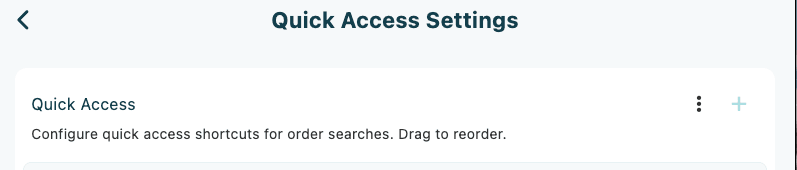
Quick Access tiles are different from the configurable shortcut blocks on the Home Dashboard — Quick Access is its own dedicated screen, focused on filtered queues rather than checkout shortcuts. Tiles are configured per tenant in Settings → Quick Access Settings and described in Quick Access Tiles configuration.
Prerequisites
- You are signed in and the device has completed Initial Device Setup.
- An administrator has configured at least one Quick Access tile in Settings → Quick Access Settings. With nothing configured, the screen shows an empty state.
Opening Quick Access
Quick Access lives in the main sidebar (or wherever Quick Access has been placed in your navigation). Tap it to open the dashboard.
The dashboard has three parts:
- Page title — Quick Access in the top-left.
- Refresh icon in the top-right with the tooltip Refresh counts — tap to reload all tile counts immediately.
- Tile grid filling the rest of the screen.
The grid uses 2 columns on phones and narrow tablets and 4 columns on larger screens.
Reading a tile
Every Quick Access tile has the same anatomy:
| Element | What it shows |
|---|---|
| Icon (large, centred) | The icon picked for this tile in Quick Access settings |
| Queue name | The configured name, for example Click & Collect Ready |
| Count badge (top-right) | The current number of orders or order lines that match the tile's filters |
The count badge is highlighted in the accent colour when the count is greater than zero, and grey when there are no matching items. While counts are loading, a small spinner replaces the badge.
How counts stay up to date
Counts refresh automatically every 10 seconds while the Quick Access screen is on display. The polling pauses while you drill into a tile or leave the screen, and resumes when you come back. You can also force an immediate refresh by tapping the refresh icon in the top-right.
Counts respect the active Market & Store filter — see Selecting Store and Market. Changing the global filter reloads the counts to match.
If a tile's count looks stuck, tap Refresh counts. If it still doesn't change, check the Market & Store filter — narrowing or widening the filter can change which items are counted.
Tapping a tile
Tapping a tile opens the filtered queue for that Quick Access type. The filtered page has the queue name as its app-bar title and supports two view modes depending on how the tile was configured:
- Orders mode — a list of orders matching the filters, one card per order.
- Order lines mode — a list of order lines grouped by order, with checkboxes for bulk operations.
Searching within a queue
The filtered page has a search bar near the top with the placeholder Search orders… and a tune icon on the right.
- Type to filter by order number, customer name, email, phone, or other identifying text. The search debounces, so results refresh shortly after you stop typing.
- Tap the tune icon to open the filters drawer for additional filters such as status, date range, or order type. A small dot appears on the icon while filters are active.
- Use the paging controls at the bottom of the list to move between pages of results.
Empty results
If there are no matching orders, the page shows No orders found. If something fails to load, it shows Error loading orders instead — try Refresh counts from Quick Access, or pull to reload from inside the filtered page.
Bulk actions on order lines
Tiles configured in Order lines mode show one row per line item, grouped under their parent order, with a checkbox on each row. Select one or more lines to reveal the action bar at the bottom of the screen.
Two bulk actions are available:
- Update status — moves the selected lines to a chosen next status. The app first runs validation, then shows a workflow preview before applying.
- Cancel lines — opens the bulk cancel dialog where you choose a single reason and comment that apply to every selected line. On success: Order lines cancelled successfully.
When status update is allowed
The app only allows a status update when the selection is consistent. If the selection breaks one of the rules below, an inline message explains what to fix.
| Validation message | What it means |
|---|---|
| No lines selected | Tick at least one line. |
| All lines of a shipment must be selected | A shipment can only move as a whole. Tick the remaining lines or untick the partial ones. |
| Selected shipments have different statuses | All affected shipments must share the same current status. |
| Selected lines belong to orders with different order types | Bulk status updates only work within a single order type. |
For the underlying flows, see Updating Order Status and Cancelling Order Lines.
Variations
When no tiles are configured
A device with no Quick Access tiles configured shows a centred dashboard icon and the message No Quick Access items configured. Add tiles in Settings → Quick Access Settings — see Quick Access Tiles configuration.
Order types and view modes
A tile can be configured to show a list of orders or a list of order lines. The tile's filter set, sort order, icon, and view mode are all configured per tile in Quick Access Settings, including options like:
- Pickup (Click & Collect) vs Delivery (Shipping) delivery types
- Include / Exclude order statuses
- Payment Statuses, Sales Channels, Inventory Status
- Toggle filters: Urgent Orders Only, Orders with Errors, Future Deliveries, Show Deleted
- Inclusion/exclusion Tags
For details and walkthroughs, see Quick Access Tiles configuration.