
Home Dashboard
Use the Home screen as a working surface for sales — search products, add them to a cart, attach a customer, and view the active cart side-by-side.
The Home screen is the main working surface in the In-Store App. It combines an active cart, a product search, and a configurable set of shortcut blocks (product shortcuts, print templates, recommendations, last-purchased) so staff can serve a customer without bouncing between sections.
This page covers what the Home screen shows, how the layout adapts to the device, and the actions you can take directly from it. For the configurable home blocks themselves, see Home Blocks. For the badge tiles that link to filtered order queues, see Quick Access Tiles.
Prerequisites
- You are signed in and the device has completed Initial Device Setup.
- The Home screen has at least one block enabled in Settings → Home Blocks. A new device starts with sensible defaults; an empty Home is unusual.
Layout
The Home screen adapts to screen size:
| Screen width | Layout |
|---|---|
| Tablet / desktop (≥ 800 px) | Two-pane split: Home blocks on the left, the active Cart Panel on the right, with a draggable divider between them |
| Phone / narrow (< 800 px) | Single column of Home blocks, with a floating cart button in the bottom-right corner |
Resizing the Home and Cart panes (large screens)
A vertical divider sits between the two panes. On large screens you can drag or tap it to give one side more room:
- Drag right to expand the Home pane and collapse the cart.
- Drag left to expand the cart and collapse the Home pane.
- Tap the divider to toggle the cart open from a default split, or to reset both panes back to the default proportions when one of them is collapsed.
While dragging, the divider's icon previews which side will get more space.
Home blocks
Everything on the left side of the Home screen is rendered from home blocks — small, repositionable cards that an administrator configures. Six block types are available:
| Block | What it does | More |
|---|---|---|
| Product search | A search bar that opens the full product search overlay or page. | See Searching for products below. |
| Customer selector | A row that shows the customer attached to the active cart, or lets you add one. | Adding a Customer to the Sale |
| Product shortcut | A tile that adds one product (or one variant) to the cart in a single tap. | Configured per block in Settings → Home Blocks. |
| Print template | A tile that prints a configured document (for example a price tag). | Print from Home |
| Last purchased | A panel showing the most recent transactions for the store. | Last Purchased |
| Recommendations | A panel of recommended products tailored to the active cart or customer. | Recommendations |
The order of blocks and which blocks are enabled is set in Settings → Home Blocks — see Home Blocks.
Product shortcut and print template blocks are arranged in a responsive grid: 3 columns on narrow phones, 4 on small tablets, 6 on larger tablets. Other blocks (customer selector, search, last purchased, recommendations) span the full width on their own row.
Searching for products
The Search products bar is a Home block. It looks like a rounded search field with a magnifying glass on the left and (on phones and tablets) a camera icon on the right.
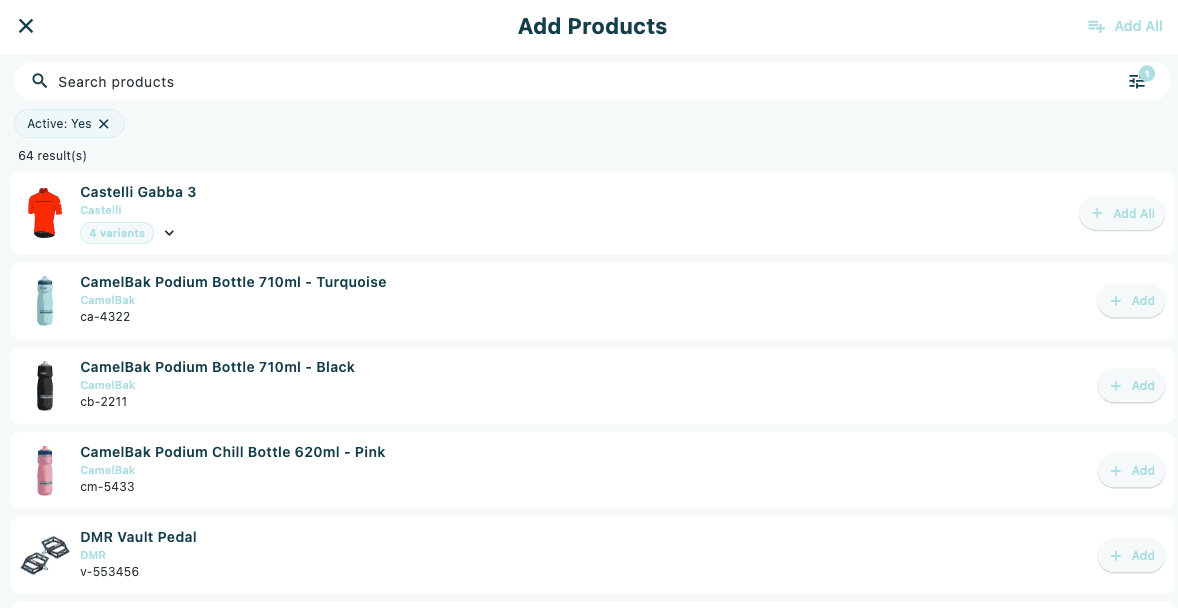
- Tap the search bar. On phones the full Product Search page opens; on large screens an overlay panel slides in over the Home screen.
- Enter a name, SKU, brand, or EAN. Use the filter chips to narrow the results.
- Tap a product to add it to the active cart. If the product has variants, a variant picker sheet opens first.
To close the overlay on a large screen, tap × in the top-right or tap outside the panel.
Scanning a barcode (mobile only)
On iOS and Android tablets the search bar shows a camera icon on the right.
- Tap the camera icon to open the barcode scanner.
- Aim the camera at the product's barcode. The scanner reads EAN and GTIN values.
- If a product matches, the Scanned Product dialog opens with the product details and two actions: Add to cart and Go to product.
- If no product matches, the app shows a snackbar: No product found for "<code>".
Adding products to the cart
There are three ways to add a product from the Home screen:
- Tap a product shortcut tile — adds the configured product (quantity 1) to the active cart in a single tap.
- Search and tap a result — same effect, but for any product, not just the configured shortcuts.
- Scan a barcode and confirm — opens the Scanned Product dialog and adds on confirmation.
Once added, the app shows a snackbar like Wide-Leg Jeans added to cart. If the action fails, the snackbar says Failed to add <name> to cart: <error>.
If no cart is currently selected, the first add creates a new cart using the device's default store and order type.
Products with variants
Tapping a product that has more than one variant (size, colour) opens a bottom sheet titled with the product name. Pick a variant from the sheet to add it. The sheet stays open if you want to add more than one variant.
Adding or removing a customer
The Customer selector block on the Home screen attaches a customer to the active cart. Tap it to open a customer search and pick a private or business customer.
- If no cart is active, attaching a customer creates a new cart and shows New cart created with customer!.
- If a cart is already active, the customer is attached and the app shows Customer added to cart successfully!.
- To remove a customer from an active cart, tap the customer in the selector and confirm. The app shows Customer removed from cart.
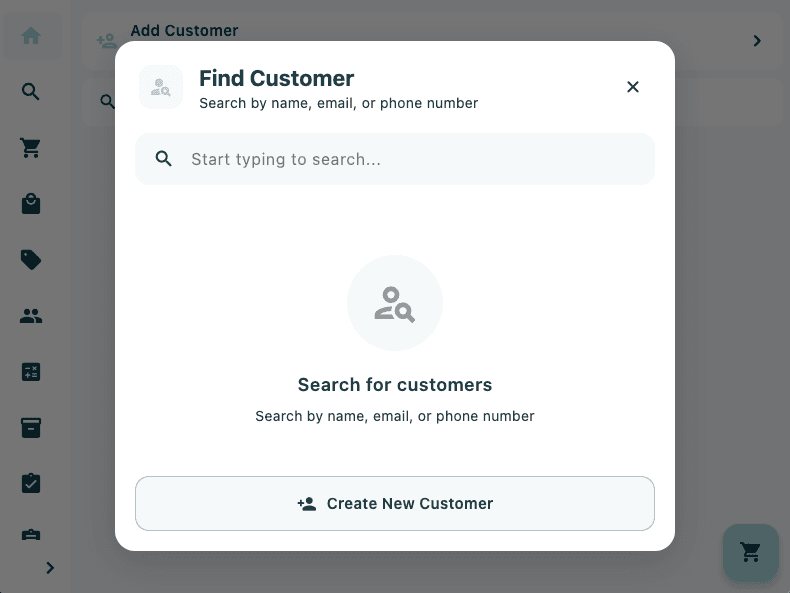
See Adding a Customer to the Sale for the full customer flow.
The Cart Panel
On large screens the right-hand pane is the Cart Panel — the same panel you use during checkout. It shows the active cart's lines, totals, customer, and payment buttons.
- If no cart is active, the panel shows an empty state with a button to start a new cart.
- Once a cart is selected (manually or by adding the first item), every action on the Home screen updates this panel live.
On small screens the cart is hidden behind the floating cart button in the bottom-right corner. The button shows a badge with the current line count. Tap it to slide the cart over the screen; tap the close button to return to Home.
For everything you can do inside the Cart Panel, see Sales & Checkout and Carts.
Variations
A new device with no cart yet
When you first sign in, no cart is selected. The Cart Panel (or floating cart button) shows an empty state. As soon as you add a product, scan a barcode, or attach a customer, a new cart is created using the device's default store and order type.
When the Home screen looks empty
If your Home screen has no visible blocks, an administrator has either disabled them all or has not configured any. Go to Settings → Home Blocks to add at least a product search and a customer selector — see Home Blocks.