
Inventory Counts
Conduct and manage physical stock counts to compare counted quantities against system records.
The Inventory Counts section is used to conduct and manage physical stock counts. Staff use this feature to compare physical stock levels against the quantities recorded in the system.
Viewing inventory counts
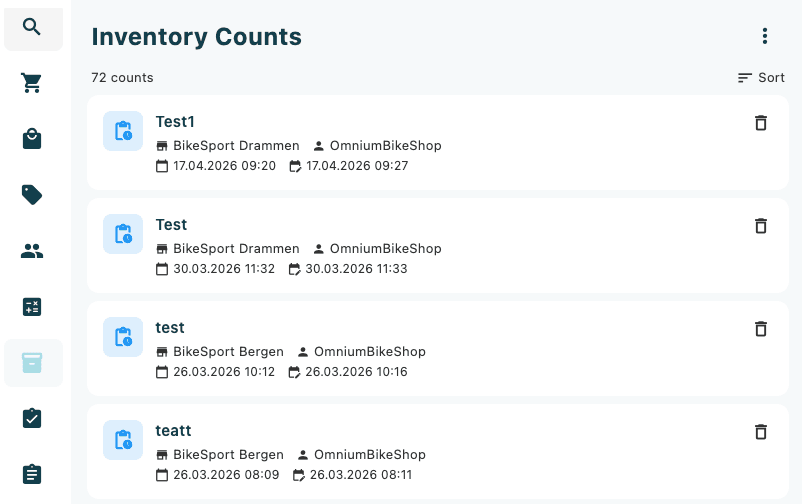
The inventory counts list displays all counts associated with your store, including the count name, store, assigned user, and the date the count was created and last updated. Counts with a green check icon have been completed.
- Tap the plus (+) button in the bottom-right corner to create a new inventory count.
- Tap the trash icon next to a count to delete it.
Conducting an inventory count
- Tap an existing count from the list, or create a new one using the (+) button.
- Tap "Add Products" to include items in the count.
- For each product, enter the physically counted quantity in the Counted field. Items may also be added by scanning a barcode.
- Once all items have been counted, tap "Update Stock" to submit the count and update the system quantities.
Understanding the count columns
| Column | Description |
|---|---|
| Product | Name and SKU of the item |
| System qty | Quantity currently recorded in the system |
| Counted | Quantity physically counted by staff |
| Difference | Variance between system and counted quantities |
Once you tap "Update Stock", the system quantities will be updated immediately. Double-check your counts before submitting.