
Delivery Detail
Inspect the items and status of a single delivery.
The Delivery Detail view shows everything about one delivery: the line items it contains, how many units have been received versus ordered, and the delivery's logistics information (status, ETA, tracking, invoicing, and warehouse route).
Use this view to check the progress of an inbound shipment and to start the Goods Reception process once goods arrive at the store.
Opening a delivery
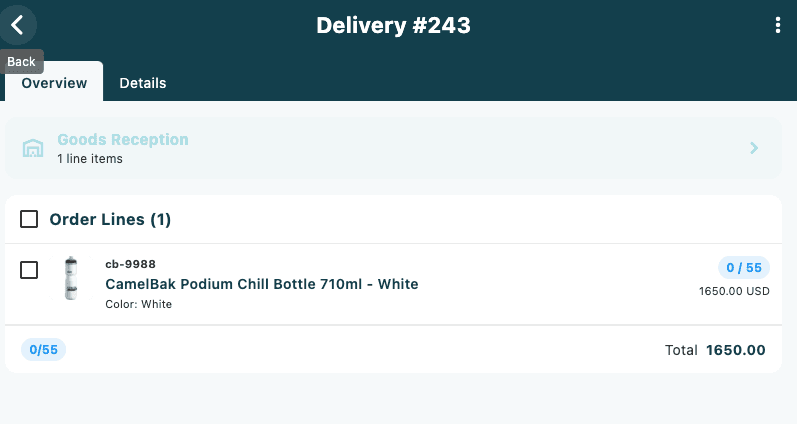
Tap any delivery card on the Deliveries tab of a purchase order to open its detail view. The screen title shows Delivery # followed by the delivery ID.
Layout
On a wide screen (tablet in landscape or desktop), the view uses a two-column layout:
- Left column — the Order Lines card listing all items in the delivery
- Right column — the Goods Reception banner and the sidebar panels (Delivery Information, Warehouse, Suppliers, Notes)
On a narrower screen, the view uses two tabs:
| Tab | What it shows |
|---|---|
| Overview | Goods Reception banner and Order Lines |
| Details | Delivery Information, Warehouse, Suppliers, and Notes panels |
Order Lines
The Order Lines card lists every product line included in this delivery. A summary at the top shows the total count, for example Order Lines (4).
Selecting lines:
- Tap any line row to select it — a checkbox ticks and the row highlights.
- Tap the select all checkbox in the card header to select or deselect all lines at once. The checkbox shows a dash when only some lines are selected.
- Selected lines are used when tapping the Goods Reception banner — only the chosen lines are processed.
What each line row shows:
| Column | Description |
|---|---|
| Product image | Thumbnail from the product catalogue, or a placeholder icon |
| SKU code / Supplier SKU | Internal code and, if set, the supplier's reference for this variant |
| Product name | Display name of the variant |
| Size / Colour | Shown beneath the product name if values are present |
| Reservation badge | Indicates how many customer orders are waiting for this line's stock |
| Delivered / Ordered | A quantity badge showing units delivered so far versus units ordered (e.g. 3 / 5). Green when fully delivered, blue when partially delivered. |
| Cancelled | If any units were cancelled, shown in orange below the quantity badge |
| Line cost | Extended price excluding tax, with currency code |
Summary row:
At the bottom of the list a summary chip shows total delivered versus total ordered across all lines (e.g. 15 / 20). If total cost is available, it also appears on the right.
Goods Reception banner
The Goods Reception banner appears above the Order Lines card and is the quickest way to start receiving goods.
The banner's colour communicates the delivery's overall progress at a glance:
| Colour | Meaning |
|---|---|
| Green | All lines are fully delivered, or the delivery status indicates completion |
| Orange | Some lines have been partially delivered |
| Red | The delivery has been cancelled |
| Accent (default) | No goods have been received yet |
Using the banner:
- Tap the banner to open the Goods Reception flow for all lines in the delivery.
- To receive only specific lines, first select them in the Order Lines card (checkboxes), then tap the banner. The subtitle changes to show how many lines are selected: X of Y lines selected.
See Goods Reception for full details on the reception process.
Delivery Information
The Delivery Information panel shows logistics metadata for this delivery. Fields only appear if they have a value.
| Field | Description |
|---|---|
| Delivery ID | The unique identifier for this delivery |
| Created | Date the delivery record was created |
| Status | Current status as a colour-coded badge (see Status colours) |
| ETA | Estimated time of arrival |
| ETD | Estimated time of departure |
| Tracking Number | Carrier tracking reference |
| Tracking Link | Tappable link that opens the carrier's tracking page in a browser |
| Invoice Number | Supplier invoice reference |
| Invoice Date | Date on the invoice |
| Delivery Provider | Name of the carrier or logistics provider |
| Barcode | Delivery barcode, if set |
Status colours
| Colour | Status keywords |
|---|---|
| Green | Delivered, Complete |
| Blue | InTransit, Shipped |
| Orange | Pending, Draft |
| Red | Cancelled |
Warehouse
The Warehouse panel shows the origin and destination of the shipment.
For supplier deliveries, only the Destination Warehouse is shown.
For internal transfers (stock moved between your own warehouses), both warehouses are shown with a downward arrow between them:
- Source Warehouse — the warehouse the stock is sent from
- Destination Warehouse — the warehouse the stock is being received into
Suppliers
The Suppliers panel is shown only when supplier information is available for the delivery. It lists the name of each supplier linked to this delivery.
Notes
The Notes panel is shown only when the delivery has notes attached. Notes are grouped into two collapsible sections:
- Internal Notes — visible only within Omnium (lock icon)
- Public Notes — notes that may be shared externally (globe icon)
Tap a section header to expand or collapse it. Each note shows the author's name, the date and time it was written, and the note text.
Menu actions
Tap the ⋮ (more options) button in the top-right corner of the screen for additional actions:
| Action | Description |
|---|---|
| Refresh | Reload the delivery from the server |
| Print RFID Labels | Send RFID labels to a connected RFID printer. Only visible when an RFID printer is paired and label templates are configured. If lines are selected, only those lines are sent; otherwise all lines are included. |
Print RFID Labels is only available if your store has an RFID printer paired and at least one label template configured in Settings. If you do not see this option, contact your store manager.