
Logging In
Sign in to the In-Store App with your work email, choose an organisation if your account has more than one, and complete authentication via your identity provider.
The In-Store App requires a sign-in before any features become available. The sign-in flow is identity-provider–driven: you enter your email, the app looks up which organisation(s) you belong to, and you complete authentication in your usual single sign-on flow (Microsoft Entra ID or Azure AD B2C, depending on how your tenant is configured).
This page covers the everyday flow for store staff. For first-time setup that follows after sign-in, see Initial Device Setup.
Prerequisites
- A user account that has been created for you in Omnium and granted access to at least one store.
- The work email address associated with that account.
- A working network connection — the app contacts the API to look up your account and your organisation's identity provider.
Signing in with your work email
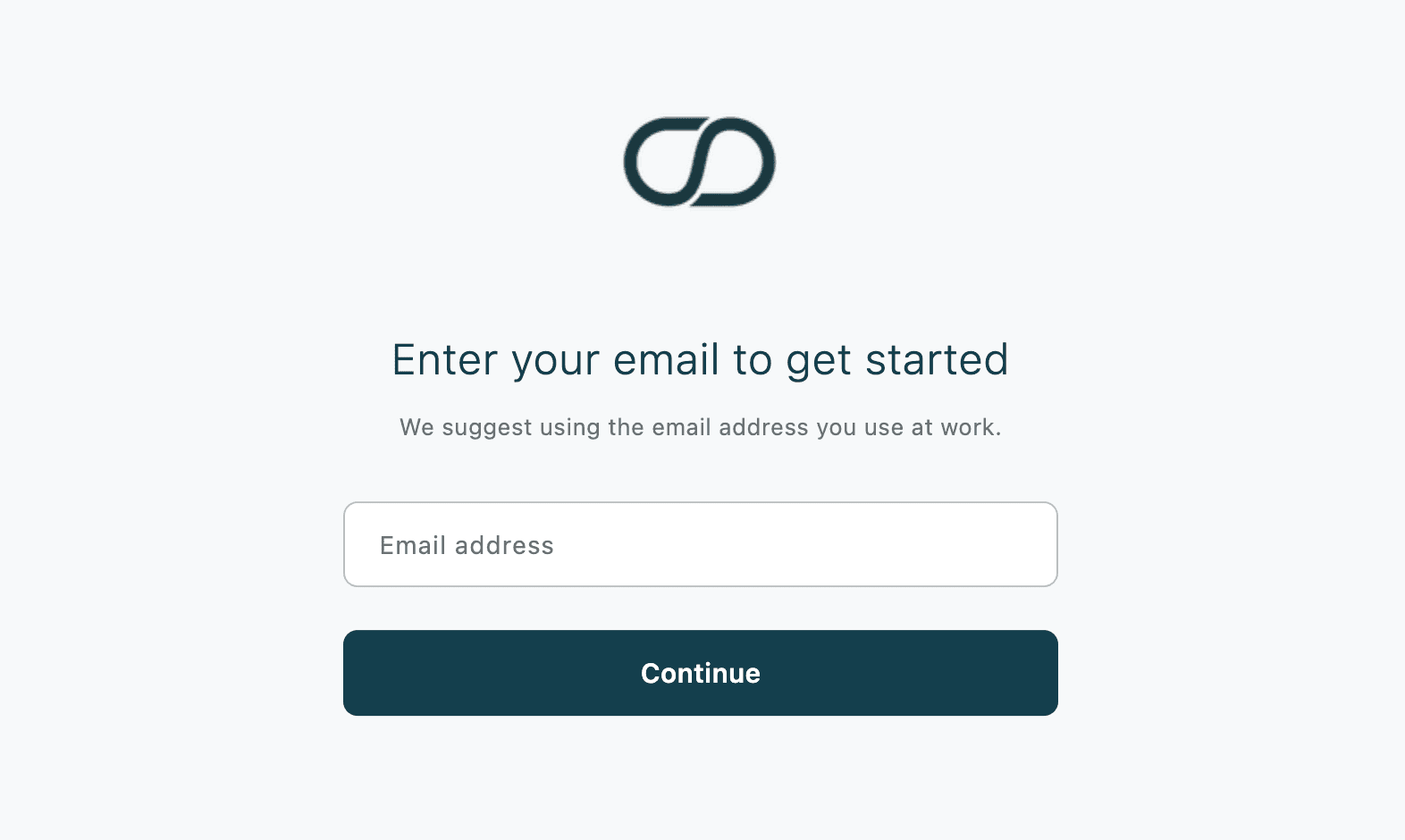
The first screen shows the Omnium logo with the heading Enter your email to get started and the hint We suggest using the email address you use at work.
- Open the In-Store App on your device.
- In the Email address field, enter your work email.
- Tap Continue.
- The app looks up your account and opens your organisation's sign-in page (Microsoft sign-in, your company's branded sign-in, or similar). Your email is pre-filled there as a hint.
- Complete the sign-in — typically a password, multi-factor prompt, or whatever your identity provider requires.
- After your identity provider confirms, the app exchanges the result for an API session and takes you to the next screen.
While the OAuth sign-in is running you'll see a full-screen loading view with a pulsing Omnium logo. Don't switch apps or close the window — return to the In-Store App once your identity provider has accepted your credentials.
Selecting an organisation (multi-tenant accounts)
If your email is registered in more than one Omnium tenant, an organisation picker appears after Continue is tapped, with the heading Select your organization.
- Tap the row for the organisation you want to sign into. Each row shows the organisation logo (or a generic icon), the organisation name, and a chevron on the right.
- The OAuth sign-in flow then runs against that organisation's identity provider.
- To go back and use a different email, tap Back in the top-left.
[Screenshot: The login screen on the "Select your organization" step, showing the heading and two organisation cards, each with a logo on the left, the name in the middle, and a right-chevron]
If you only belong to one Omnium tenant, this step is skipped — the app goes straight from the email screen to the OAuth sign-in.
What happens after you sign in
A successful sign-in does not always take you straight to the Home screen. Depending on the device's state, one of the following will happen next:
| Device state | What you see next |
|---|---|
| Brand-new device, setup never completed | The Initial Device Setup wizard |
| Device known to the tenant but not registered to a store | The Device Registration screen |
| Fully set up | The Home screen |
On Android devices, the app also registers for push notifications at this point so the device can receive store-level alerts.
Signing out
To sign out, open Settings and tap Logout. Signing out clears the saved session on the device and returns to the email screen.
Common sign-in problems
The login screen surfaces errors in a red banner above the Continue button. The most common ones are:
| Message | What it means |
|---|---|
| Please enter your email | The Email address field was empty. |
| Please enter a valid email | The text you entered does not contain an @. |
| No user found with this email | The email is not registered in any tenant. Check the spelling, or ask your store manager to verify your account. |
| Sign-in was cancelled | The OAuth window was closed before authentication completed. Tap Continue again to retry. |
For a fuller troubleshooting walkthrough — including issues unrelated to the email screen — see Login Problems.
If you see an authentication error inside your identity provider's sign-in page (for example "user not assigned to this app" from Microsoft), that comes from your organisation's identity provider, not from Omnium. Contact your store manager or IT administrator with the exact error text.