
Shipments
View and manage the shipments grouped within a pick list, and navigate to related orders.
A pick list can span multiple shipments — each shipment represents a group of items from a single order destined for one customer or delivery address. The Shipments view in the pick list detail page lets you see which shipments are included, navigate to the related order, and remove a shipment if it should no longer be part of the list.
The header stats on every pick list detail page include a Shipments counter so you always know how many shipments are grouped in the current list.
Switching to the shipments view
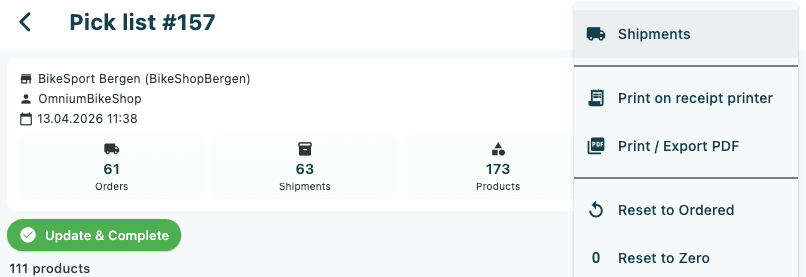
By default the pick list detail page shows the product items view. To switch to the shipments view:
- Open a pick list from Fulfilment → Pick Lists.
- Tap the overflow menu (⋮) in the top-right corner.
- Tap Shipments.
The list switches to show one card per shipment. The count bar above the list updates to show the number of shipments, for example 3 shipments.
To return to the product items view, tap the overflow menu (⋮) again and tap Products.
The Sort by option in the toolbar is only available in the products view. The shipments view does not have a sort control — shipments are shown in the order they are grouped in the pick list.
Reading a shipment card
Each shipment appears as a card with a shipping icon on the left. The card shows:
| Element | Description |
|---|---|
| Order number | The order the shipment belongs to, for example #10081. Tap to open the order detail page. |
| Shipment ID | The unique shipment identifier, shown in smaller text next to the order number. |
| Customer name | The recipient's name, shown below the order number with a person icon. |
| Created date | The date and time the order was created, in the format dd.MM.yyyy HH:mm. |
| Remove icon | A grey remove icon on the right. Only shown when the pick list is not completed. |
Navigating to an order
Tap the order number (for example #10081) on any shipment card to open the full order detail page for that shipment's order.
This is a quick way to check payment status, order notes, or the full line-item list without leaving the pick list context. Use the back button to return to the shipments view.
Removing a shipment from the pick list
Removing a shipment takes it out of the current pick list. The shipment itself and its linked order are not deleted.
- In the shipments view, tap the remove icon (circle-minus) on the shipment card you want to remove.
- A confirmation dialog appears:
- Title: Remove from Pick List
- Message: Remove from Pick List?
- Cancel — closes the dialog without changes.
- Remove (red) — removes the shipment from the pick list.
- On confirmation, the shipment card disappears and the pick list reloads. The Shipments counter in the header stats decreases accordingly.
The remove icon is hidden when the pick list has the status Completed or Transferred — a completed pick list cannot be modified.