
Pick Lists
Manage the fulfilment of customer orders using pick lists that group items to be located and prepared.
The Pick Lists section is used to manage the fulfilment of customer orders. A pick list groups the items that need to be located and prepared for a customer order.
Viewing pick lists
The Pick Lists tab displays all pick lists associated with your store. Each entry shows:
- Pick list number
- Status (
NeworCompleted) - Store name and assigned user
- Date and time of creation
- Number of items included
Use the search bar to locate a specific pick list. Tap the trash icon to delete a pick list that is no longer required.
Pick list detail
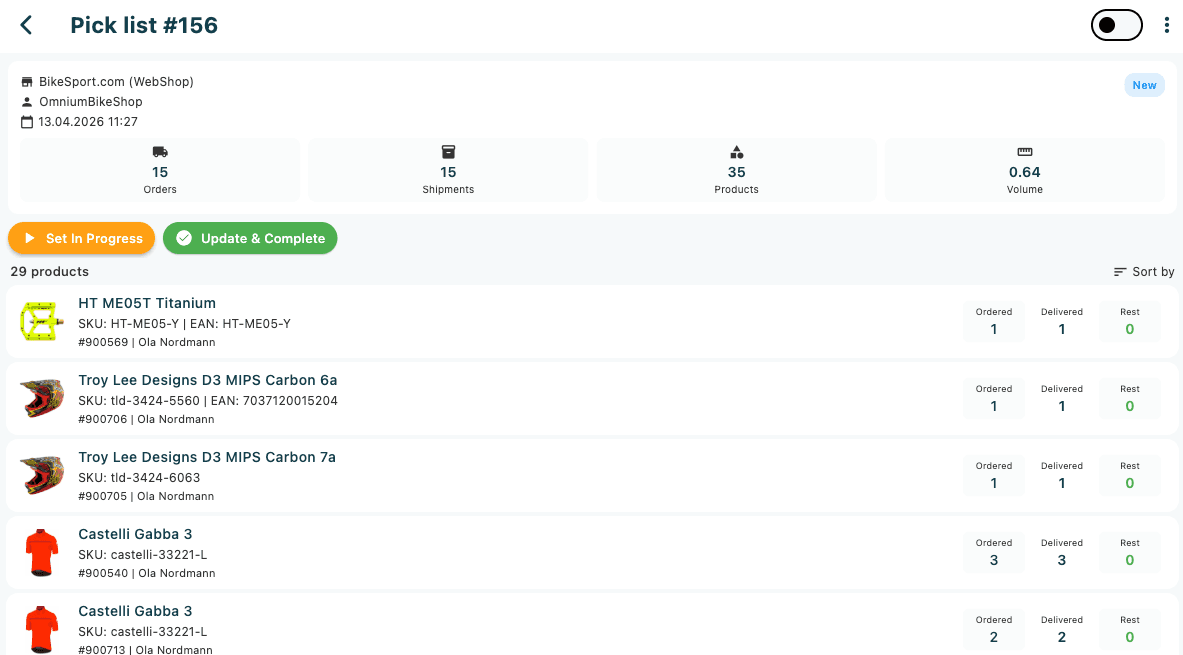
Tapping a pick list opens the detail view, which displays:
- Store name and assigned user
- Date and time of creation
- Summary counters for Orders, Shipments, and Products
- A list of all products to be picked, including product name, SKU, EAN, and order reference
- For each product: the quantity Ordered, the quantity Delivered, and the Rest (remaining quantity to fulfil)
Processing a pick list
- Tap "Set In Progress" to indicate that picking has begun. The status will update accordingly.
- Locate and collect each product listed in the pick list.
- Once all items have been collected, tap "Update & Complete" to finalise the pick list.
Orders to pick tab
The Orders to Pick tab provides a view of individual orders that contain items requiring fulfilment. This can be used to prioritise which orders to process first.