
Orders to Pick
View individual orders awaiting fulfilment, select them, and add them to pick lists.
The Orders to Pick tab shows orders that contain items still needing to be picked. Staff use it to decide which orders to process next and to create or extend pick lists. By default the list shows only unassigned orders with statuses New or In Progress, so the view focuses on work that has not yet been claimed.
Reading the order list
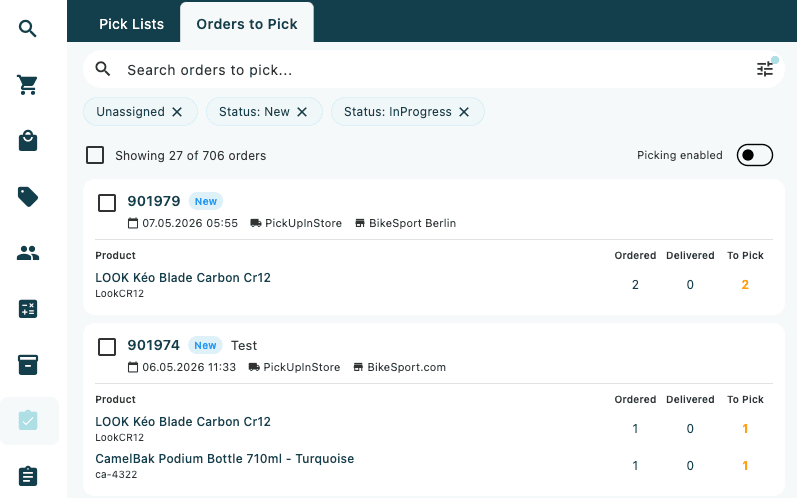
Each order appears as a card with the following information:
| Element | Description |
|---|---|
| Order number | Bold link — tap to open the full order detail |
| Status badge | Colour-coded badge showing the current order status |
| Customer name | Shown next to the status badge |
| Date | Order creation date and time |
| Shipping method | Shown when set on the shipment |
| Warehouse | Shown when a warehouse is assigned |
| Pick list badge | Purple badge with pick list ID — shown when this shipment is already on a pick list; tap to open that pick list |
Below the order header, a table lists each line item with four columns:
| Column | Label |
|---|---|
| Product name and SKU | Product |
| Units ordered | Ordered |
| Units already delivered | Delivered |
| Units still to pick | To Pick |
The To Pick value is shown in orange when items remain, and green when all units are accounted for. Stock location codes are shown below the SKU in the accent colour when location data is available.
Selecting orders
Tap a card to toggle its selection checkbox. The count row above the list updates to show how many orders are selected (for example 3 selected).
To select all visible orders at once, tap the Select All checkbox in the toolbar row above the list. Tapping it again deselects all.
The toolbar row shows Showing N of M orders when no orders are selected, and switches to N selected (in the accent colour) when there is an active selection.
Actions for selected orders
Tap the floating action button (checklist icon, bottom-right) to open the Actions sheet. If no orders are selected, a notification appears and the sheet does not open.
The sheet shows the number of selected orders and three actions:
| Action | What it does |
|---|---|
| Add to New Pick List | Creates a new pick list containing the selected orders and opens it immediately |
| Add to Existing Pick List | Opens a dialog to choose an existing open pick list; adds the selected orders to it |
| Assign to Me | Sets the current user as the assignee on the selected orders |
On success, a confirmation notification appears and the list reloads.
Picking mode
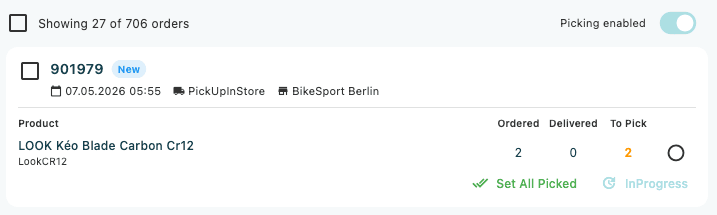
Toggle the Picking enabled switch (top-right of the tab) to activate per-item picking controls directly on the order cards.
When picking mode is on:
- Each line item shows a circle icon on the right. Tap it to mark the item as picked (the icon turns to a green filled circle). Tap again to unmark it.
- A Set All Picked button (green text button) appears at the bottom of each card when at least one item still needs to be picked. Tap it to mark all items as picked in one step.
- Once all items on a card are picked, available status update buttons appear. The next-status button is highlighted in green when all items are picked, and shown as a plain text button otherwise. Tap it to update the order status — the standard workflow dialog opens to confirm the change.
Picking mode lets staff mark items as collected directly from this list view, without needing to open a separate pick list. This is useful for single-order or quick-turnaround fulfilment.
Search and filters
Type in the search bar at the top of the tab to search across order numbers, customer names, and product names. The results update as you type.
Tap the filter icon (sliders) on the right side of the search bar to open the Filters drawer. Active filters are shown as removable chips below the search bar.
Default filters
The tab opens with these filters active by default:
| Filter | Default value |
|---|---|
| Show only unassigned | On |
| Order Status | New, In Progress |
Filter drawer sections
Sort Order — sort results by Order number, Created date (Oldest first / Newest first), Status, Customer Name, or Location.
Filters (toggles)
| Toggle | Label |
|---|---|
| Show only unassigned | Hides orders already assigned to a user (on by default) |
| Exclude split shipments | Hides orders with multiple shipments |
| Reserved shipments only | Shows only orders with reserved shipments |
| Only in stock | Shows only orders where all items are in stock |
| Urgent orders | Shows only orders flagged as urgent |
Date filters — set a date range for Created or Requested Delivery.
List filters — filter by Payment Status, Order Status, and Shipment Status (multi-select).
Search filters — narrow by Order Number, Email, Phone, Customer Name, Product, Brand, Location, or Postal Code range.
Tap Clear All in the drawer header to reset all filters to their defaults.
Loading more orders
When more orders are available than the initial page of results, a Load More button appears at the bottom of the list. Tap it to append the next page without losing your current selection or scroll position.