
Multi-User Mode
Allow multiple employees to share one device while keeping their actions separate and switching users via the lock screen.
Multi-user mode allows several employees to share a single device. When active, a lock screen appears whenever the device is idle — each staff member unlocks it with their personal PIN or by tapping their card, and the app then operates under that person's identity. This keeps actions traceable to individual employees rather than a single shared account.
This page explains when to use multi-user mode, how it changes the app experience, and what controls are available once it is active.
How multi-user mode is enabled
Multi-user mode is enabled in the Omnium back office — there is no in-app toggle. An administrator turns on the Multi-employee user switch on the user account under Authorization → Users. Contact your Omnium administrator if you need it enabled.
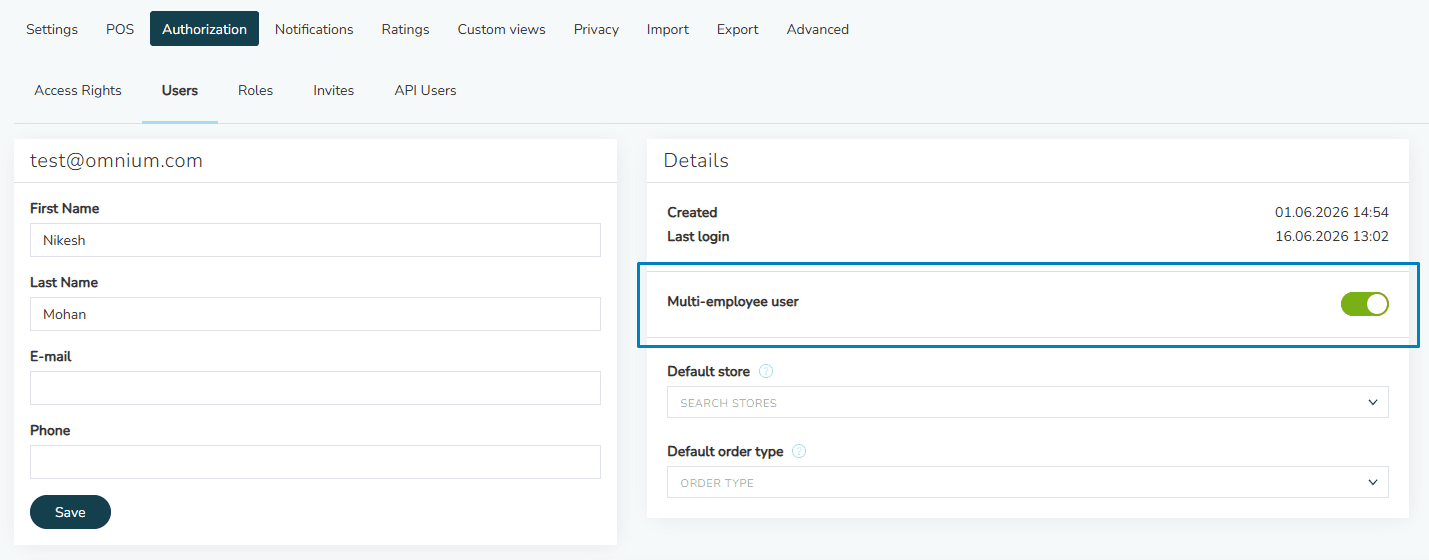
Once enabled, the app detects it automatically the next time it connects to the server. A Multi-User section appears in Settings, and the lock screen becomes active.
If the Multi-User section is not visible in Settings, multi-user mode has not been enabled for this account. Contact your Omnium administrator.
Single-user vs. multi-user experience
| Feature | Single-user | Multi-user |
|---|---|---|
| Lock screen | Not shown | Shown at startup and after inactivity |
| Employee switching | Not available | Switch via Lock Now or inactivity timeout |
| Action attribution | All actions under one shared account | Actions attributed to the signed-in employee |
| Multi-User section in Settings | Not shown | Shown |
| Manage Employees | Not available | Available to admin employees |
The Multi-User section in Settings
When multi-user mode is active, a Multi-User section appears in Settings. What each employee sees in that section depends on their role.
Tiles visible to all employees
| Tile | What it does |
|---|---|
| Current Employee | Displays the name of the currently signed-in employee. Read-only — no action. |
| Lock Now | Locks the screen immediately. The lock screen appears and the current employee is signed out of the device session, ready for another employee to sign in. Subtitle: Switch to another employee. |
Tiles visible to administrators only
| Tile | What it does |
|---|---|
| Multi-User Settings | Opens the lock screen configuration: lock screen mode, inactivity timeout, and auto-submit PIN length. Subtitle: Configure lock screen and timeout. |
| Manage Employees | Opens the employee list where administrators can add, edit, deactivate, and remove employees and their PINs. Subtitle: Add, edit, or remove employees. |
An employee has administrator access if the Administrator toggle is turned on in their employee record. Administrators are identified by an accent-coloured avatar on the lock screen and an Admin badge on their tile in Manage Employees.
What happens when multi-user mode is first enabled
When multi-user mode is newly enabled and no employees have been configured yet, the lock screen does not appear — there is no employee list to lock to. The app operates normally, but the Multi-User section appears in Settings.
An administrator should immediately:
- Open Settings → Multi-User → Manage Employees.
- Add at least one employee with the Administrator role and set a PIN.
- Tap Save.
Once employees are saved, the lock screen becomes active and shows the configured employees.
At least one active employee must have the Administrator role at all times. The app enforces this when saving the employee list — saving is blocked if no active admin exists.
Signing in on the lock screen
After multi-user mode is active and employees are configured, the lock screen replaces the app interface at startup and whenever the device is locked. The lock screen has two modes that administrators can configure:
- PIN Only — employees enter their unique PIN to sign in.
- User Select — employees tap their card from a grid, then enter their PIN if required.
For full details on how to unlock, configure the inactivity timeout, and use auto-submit PIN, see Lock Screen and PIN.
Welcome notification
Each time an employee successfully unlocks the device, a Welcome, [name] banner appears briefly at the top of the screen and then dismisses automatically. This provides a visual confirmation that the right employee is now signed in.
Admin access without selecting an employee
If multi-user mode is active but no employees have been configured yet, the Multi-User settings (including Manage Employees) remain accessible without requiring a sign-in. This ensures an administrator can always complete the initial setup.
Signing out completely
Signing out ends the Omnium session for all employees on the device and returns to the login screen. This is different from locking — which keeps the session active and only requires a PIN or employee selection to resume. To sign out completely, use the Sign Out button on the lock screen.