
Grouping and Filters
Group and filter report data by date range, order type, product attributes, and more to focus on what matters.
Both the Orders and Order Lines tabs in Reports share a common date range control. The Order Lines tab additionally supports grouping the results into named buckets and applying a rich set of attribute filters. This page covers every control available across both tabs.
Date range
A scrollable row of period chips appears below the tab header on both tabs. Tap any chip to switch the report to that time window — the data reloads immediately.
| Chip | Period covered |
|---|---|
| Today | From midnight to now |
| Yesterday | The previous full day |
| Last 7 days | Rolling seven-day window |
| Last 30 days | Rolling thirty-day window |
| Custom range | Any start and end date you choose |
The active chip is highlighted. Only one period can be active at a time.
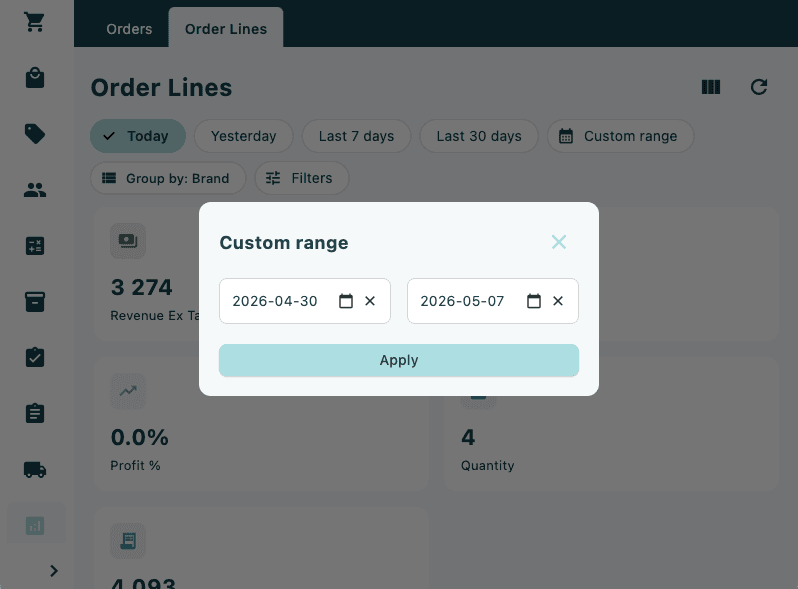
Setting a custom date range
- Tap Custom range (calendar icon).
- The Custom range dialog opens with From and To date fields.
- Tap the From field and select the start date.
- Tap the To field and select the end date. The To date cannot be earlier than From, and neither date can be in the future.
- Tap Apply to close the dialog and reload the report.
When a custom range is active, the chip label shows the selected dates instead of "Custom range".
Grouping (Order Lines tab only)
The Group by chip appears on the left of the filter row on the Order Lines tab. It controls how the data table rows are aggregated.
Tap the chip to open a dropdown menu. The currently selected grouping has a checkmark next to it. Select a different option to regroup the data immediately.
| Grouping | Rows represent |
|---|---|
| Brand | One row per brand |
| Product Name | One row per product |
| SKU | One row per individual SKU |
| Color | One row per colour value |
| Size | One row per size value |
| Main Category | One row per top-level product category |
| Store | One row per store |
| Sales Person | One row per sales person |
| Status | One row per order status |
| Order Type | One row per order type |
The Group by column in the data table is always visible and reflects the active grouping.
Columns (Order Lines tab only)
The Columns button (grid icon) in the top-right corner of the Order Lines tab opens the Columns dialog. Use it to show or hide data columns in the table.
The following columns can be toggled on or off:
| Column | What it shows |
|---|---|
| Revenue Ex Tax | Total revenue excluding tax |
| Revenue | Total revenue including tax |
| Total Cost | Total cost of goods sold |
| Profit | Revenue minus cost |
| Profit % | Profit as a percentage of revenue excluding tax |
| Quantity | Number of units sold |
| Cancelled | Number of units cancelled |
| Returned | Number of units returned |
The Group by column is always shown and cannot be hidden.
Tap Apply to save your selection. Tap Cancel to close without changes.
Filters — Orders tab
The Filters chip (tune icon) on the Orders tab opens a panel that slides in from the right. Changes apply immediately as you make selections.
Market / Store
At the top of the panel, the Market / Store selector limits the report to a specific market or store. This control behaves the same as the market/store selector on other screens.
Status
Tap the Status dropdown to open a multi-select dialog. Choose one or more order statuses to include. Available options:
New, In Progress, Ready For Pickup, Ready For Shipment, Completed, On Hold, Order Canceled, Order Canceled By Customer, Order Canceled By Store, Packing In Process, Packed And Ready, Picked Up And Paid, Picked Up, Ship, In Transit, Returned, Partially Returned, Partially Shipped, Confirmed, Pending
When more than one status is selected, the dropdown label shows how many are chosen (for example, 3 selected).
Order type
Tap the Order type dropdown to filter by one or more order types:
Pos, Online, Click And Collect, Bopis, Pre Order, Ship From Store, Replacement, Return Order, Subscription
Sales person
Enter a sales person ID in the Sales person text field to limit the report to orders handled by that person. The field applies after a short delay as you type.
Clearing filters
Tap Clear All in the panel header to reset all filters at once. To remove a single active filter, tap the × on its chip in the filter row.
Filters — Order Lines tab
The Order Lines tab has a richer filter set. Tap Filters (tune icon) to open its panel. All dropdowns are populated from the actual data in the selected date range — only values that exist in the results are shown.
Market / Store
Same market/store selector as on the Orders tab — limits the entire report to the chosen scope.
Filter dropdowns
Each dropdown opens a multi-select dialog. When a list has more than eight items, a search field appears at the top of the dialog to narrow the options.
| Filter | What it limits |
|---|---|
| Status | Order statuses present in the current results |
| Order type | Order types present in the current results |
| Sales person | Sales person names present in the current results |
| Brand | Product brands |
| Color | Product colours |
| Size | Product sizes |
| Product type | Product type classifications |
| Promotion | Promotion names applied to order lines |
| Supplier | Supplier names |
| Payment method | Payment method names |
Include toggles
Two toggle switches at the bottom of the panel control which line types are counted in the totals:
| Toggle | Effect when on |
|---|---|
| Include shipments | Shipping cost lines are included in revenue and quantity figures |
| Include returns | Return lines are included (reducing totals) |
Both toggles are off by default.
Active filter chips
Active filters appear as removable chips in the filter row next to the Filters button. Each chip shows the filter name and the number of selected values. Tap the × on a chip to remove that filter without opening the panel. Tap Clear All inside the panel to remove all filters at once.