
Customer Detail
View a customer's contact information, club membership, purchase history, statistics, and account details.
The Customer Detail view opens when you tap any customer from the Customers list. It shows the full profile for both private and business customers, organised across tabs covering their overview, statistics, and order history.
The screen title shows the customer's name. The title bar hides when you scroll down and reappears when you scroll back up.
Tabs
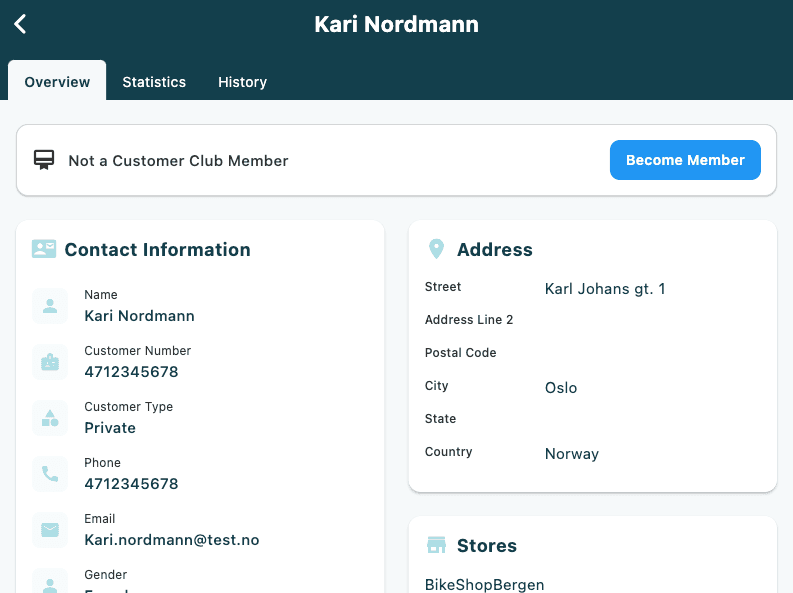
The tab bar runs along the top of the screen on a dark blue background. Tap a tab to switch between sections.
| Tab | What it shows |
|---|---|
| Overview | Contact details, address, club membership (private only), and account flags |
| Statistics | Key purchase metrics, charts, and returns data |
| Details | Related business accounts, customer groups, and custom properties — only visible when at least one of these has data |
| History | Orders and carts linked to this customer |
Status alerts
Any active flags appear as full-width banners at the top of the Overview tab, above all other cards.
| Alert | Colour | Meaning |
|---|---|---|
| Priority Customer | Blue | This customer is marked as a priority account |
| Customer Not Active | Orange | The customer account is inactive |
| Global Customer | Purple | This customer is a global account spanning multiple markets |
If the customer record has processing errors, an Errors & Warnings card appears below the flag alerts. Each error shows its severity badge (Error or Warning). Tap an entry to expand it and see details, a comment, the date it occurred, and a reference ID if available.
Customer Club (private customers only)
The Customer Club card appears below any status alerts and above the contact information columns. It only appears for private customers.
Member card
If the customer is a club member, a blue gradient card shows:
- A membership icon and the label Customer Club Member
- Member since — the date they joined
- Their current point balance in large text (pts)
Tap the card to expand it and see a full points breakdown:
| Row | Description |
|---|---|
| On Hold | Points that have been earned but not yet confirmed |
| Reserved | Points reserved against a pending transaction |
| Used | Points redeemed |
| Expired | Points that have lapsed |
| Total Issued | Total points ever issued to this customer |
A Remove Membership link appears at the bottom of the expanded card. See Removing club membership below.
Not a member
If the customer is not yet a club member, a card shows the text Not a Customer Club Member with a Become Member button.
Enrolling a customer
- Tap Become Member.
- The Join Customer Club dialog opens.
- Tick Approve terms and conditions (marked with an asterisk — this consent is required).
- Optionally tick Consent to SMS marketing and Consent to email marketing.
- Tap Enroll to complete the enrolment.
The Enroll button remains disabled until the required consent is ticked. Tap Cancel to close the dialog without making any changes.
On success, a confirmation message appears and the Overview reloads showing the new member card.
Enrolment is recorded against your device's home store. Ensure the correct store is configured in your device settings before enrolling customers.
Removing club membership
- Tap the Customer Club card to expand it.
- Tap Remove Membership at the bottom.
- A confirmation dialog asks: "Are you sure you want to remove this customer from the customer club?"
- Tap Remove Membership to confirm, or Cancel to go back.
Removing club membership cannot be undone from the app. The customer's points history will be lost.
Overview tab
Below the club card, the Overview tab displays information cards in a responsive column layout — one column on narrow screens, two columns on tablets, and three columns on large screens. Fields only appear when they have a value.
Contact Information
The Contact Information card shows identifying and communication details.
For private customers:
| Field | Description |
|---|---|
| Name | Full name (first + last) |
| Customer Number | The customer's number |
| Customer ID | Internal ID — only shown when it differs from the Customer Number |
| Customer Type | "Private" |
| Phone | Phone number |
| Email address | |
| Gender | Gender |
| Birth Date | Date of birth |
| Created / Modified | Dates shown side by side |
| Tags | Labels applied to the customer account, shown as chips |
For business customers:
| Field | Description |
|---|---|
| Name | Company name |
| Customer Number | The customer's number |
| Customer ID | Internal ID — only shown when it differs from the Customer Number |
| Customer Type | "Business Customer" |
| Phone | Phone number |
| Email address | |
| Tax ID | Organisation tax identification number |
| Created / Modified | Dates shown side by side |
| Tags | Labels applied to the account, shown as chips |
Address
The Address card shows the primary address on record. It only appears when at least one address field has a value.
| Field | Description |
|---|---|
| Name | Name on the address |
| Street | Street address (line 1) |
| Address Line 2 | Second address line |
| Postal Code | Post code / ZIP |
| City | City or town |
| State | State or county |
| Country | Country name or code |
Additional Addresses
The Additional Addresses card lists any extra addresses stored for the customer. The count badge in the card header shows the total number. Each address is shown as a one-line preview (name, street, city).
Tap any address row to open a dialog showing the full address, including: Location Name, Street Number, Apartment Number, Region, Phone, Email, External ID, and Purposes.
Stores
The Stores card appears when the customer is linked to specific stores or a market. It lists the store IDs and, if set, the Market ID.
External IDs
The External IDs card appears when the customer has identifiers from external systems. Each entry shows the provider name and the ID value.
Sales Person
The Sales Person card appears when a sales person ID is assigned to the customer. It shows the sales person identifier.
Customer Details
The Customer Details card appears when the record includes a free-text notes or description field. It displays the text in full.
Statistics tab
The Statistics tab shows purchase metrics derived from the customer's order history. If no completed orders exist, a message explains that statistics require order data.
Key metrics
Four metric cards are displayed in a row (or two rows on narrow screens):
| Metric | Description |
|---|---|
| Completed Orders | Total number of completed orders |
| Revenue (Ex Tax) | Total order revenue excluding tax |
| Products Bought | Total number of individual items purchased |
| Average Order Value | Average value per completed order |
Charts
Charts are shown when data is available. Their layout adapts to the screen width:
- Large screens (>900 px): Coverage and Order Types charts side by side, with the Returns card to their right.
- Medium screens (>600 px): Coverage and Order Types charts side by side, Returns card below.
- Small screens: all stacked vertically.
| Chart | Description |
|---|---|
| Coverage | Shows the coverage percentage with the rate as a subtitle |
| Order Types | Breakdown of order types |
| Recent Activity | Line chart of activity over the last 12 months (full width) |
Returns and Cancellations
The Returns and Cancellations card shows two metrics side by side (or stacked on narrow screens):
- Items Cancelled — percentage of items cancelled, with the count out of total items. Orange when above 10%, green otherwise.
- Items Returned — percentage of items returned, with the count out of total items. Orange when above 10%, green otherwise.
Details tab
The Details tab is only shown when the customer record has at least one of the following: related business accounts, customer groups, or custom properties.
Related Business Customers
For private customers who are linked to one or more business accounts, the Related Business Customers card lists each associated business. Tap any business to open its own Customer Detail view.
Customer Groups
The Customer Groups card shows the customer's group memberships as chips. This is used for pricing, promotions, and access rules.
Properties
The Properties card shows custom key–value attributes set on the customer. Properties are grouped by group name when more than one group is present. Each entry shows the key label on the left and the value on the right.
History tab
The History tab shows the transaction history for this customer. Two sub-tab buttons at the top switch between:
- Orders — a filtered list of all orders placed by this customer. Tap any order to open it.
- Carts — a filtered list of all carts belonging to this customer. Tap any cart to open it.
Both lists use the same search and filter capabilities as their full-page counterparts.
Refreshing
Pull down on any scrollable tab to refresh the customer data from the server.