
Promotion Detail
View the rules, targeting, and rewards configured for a single promotion.
The Promotion Detail view opens when you tap any promotion in the Promotions List. It gives a complete read-only breakdown of how the promotion is configured: its validity window, the products it targets, the discount it applies, and the eligibility rules that govern it.
Promotions cannot be created or modified from the app. The detail view is for reference only — use it to verify that the correct promotion is active or to understand why a discount is or is not being applied.
Layout
The view adapts to the available screen width:
| Width | Layout |
|---|---|
| Wide (tablet landscape or desktop) | Two-column — General Details panel on the left (350 px), Product Targeting / Reward / Rules cards on the right |
| Narrow | Single column — General Details above, then the remaining cards stacked below |
The screen title shows the promotion name. A back arrow in the top-left returns you to the Promotions list.
Status badge
The first element in the General Details panel is a coloured status badge showing the promotion's current state.
| Badge colour | Status | Meaning |
|---|---|---|
| Green | Active | The promotion is live right now |
| Orange | Upcoming | The start date has not yet been reached |
| Red | Expired | The end date has passed |
| Red | Inactive | The promotion has been manually deactivated |
When the status is Active and an end date is set, the text Until followed by the end date appears next to the badge as a reminder of when it expires.
General Details panel
Below the status badge, the panel lists identifying and scheduling information as label–value rows.
| Field | Description |
|---|---|
| Type | The promotion type (see Promotion types) |
| Name | Internal name of the promotion |
| Description | Short display title, if set |
| Details | Extended description, if set |
| Affected Products | Number of products currently matching this promotion's targeting — only shown when available |
| Last Price Update | When the system last recalculated prices for this promotion — only shown when available |
| Valid From | Date and time the promotion becomes active |
| Valid Until | Date and time the promotion expires (blank if open-ended) |
| Priority | Numeric priority — lower numbers are evaluated first when multiple promotions apply |
| Can Be Combined | Whether this promotion stacks with other active promotions |
| Always Apply | Whether the promotion applies even when it would normally be excluded by combination rules |
| Customer Club Only | Whether only Customer Club members receive this promotion |
| Coupon Code | The code a customer must enter to activate this promotion (shown as — when not a coupon promotion) |
| Personal Coupons | Whether each customer receives a unique coupon code rather than a shared one |
| Markets | Markets where this promotion is valid (shown when set) |
| Stores | Specific stores where it applies (shown when set) |
| Store Groups | Store group restrictions (shown when set) |
| Order Types | Applicable order types, e.g. online, in-store (shown when set) |
| Tags | Accent-coloured chips labelling this promotion (shown when set) |
Bool fields (Can Be Combined, Always Apply, etc.) display a green checkmark when enabled and a red cross when disabled.
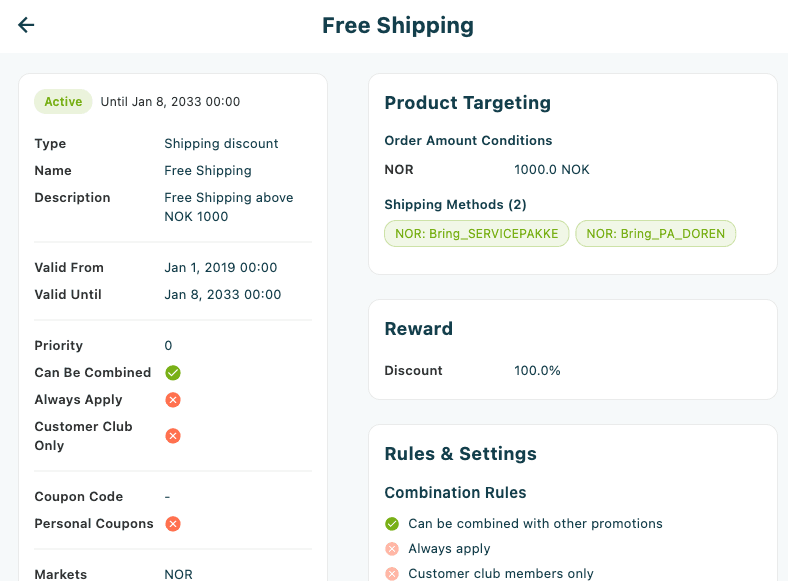
Promotion types
| Type displayed | Description |
|---|---|
| Category / brand discount | Discounts products belonging to specific categories or brands |
| Shipping discount | Reduces or removes shipping costs |
| Order amount discount | Activates when the cart total reaches a threshold |
| Multi-buy / Mix&Match discount | Buy-N-get-N style or mix-and-match offers |
| Price list promotion | Applies a configured price list |
| Product search promotion | Targets products matched by a product search query |
| Cost price promotion | Based on the product's cost price |
| Kit promotion | Applies to bundled kit configurations |
Product Targeting card
The Product Targeting card is shown when the promotion is configured to target specific products, categories, or order conditions. If the promotion applies to the entire catalogue with no restrictions, the card shows the italic note Valid for all products instead of a list.
Each targeting group is displayed as a labelled chip set. Green chips indicate items that are included; red chips indicate items that are excluded; orange chips indicate required conditions that must be met.
Categories and brands
| Section | Colour | Meaning |
|---|---|---|
| Categories | Green | Products in these categories qualify |
| Required Categories | Orange | The cart must include a product from these categories |
| Excluded Categories | Red | Products in these categories do not qualify |
| Brands | Green | Products from these brands qualify |
| Excluded Brands | Red | Products from these brands do not qualify |
Seasons and properties
| Section | Colour | Meaning |
|---|---|---|
| Seasons | Green | Products tagged with these seasons qualify |
| Excluded Seasons | Red | Products tagged with these seasons do not qualify |
| Properties | Green | Products with these custom key–value attributes qualify |
| Excluded Properties | Red | Products with these attributes do not qualify |
Products
When specific products are included or excluded, each appears as a row showing:
- An icon indicating whether the entry is a parent product (bag icon) or a specific SKU (box icon)
- Product name
- Brand name (if set)
Pricing conditions
| Field | Description |
|---|---|
| Price List | The promotion applies to products on this price list |
| Markup | Cost-price markup percentage used as the promotion's basis |
| Order Amount Conditions | Minimum cart value required to trigger the promotion — shown per market with amount and currency |
| Min Quantity | Minimum number of qualifying items required in the cart |
Shipping methods
When the promotion applies only to specific delivery methods, Shipping Methods lists them as green chips.
Kit components
For Kit promotion types, the Kit Components section lists each component group in a numbered box. Each box shows:
- Component N — the group number, with (Required) appended if the group must be present
- Required Qty — minimum quantity of this component needed
- Discounted Qty — number of units discounted within this group
- Categories, Brands, or Products that satisfy this component slot
Reward card
The Reward card is shown when the promotion is configured with a discount value. Its content depends on how the reward is defined.
Percentage or fixed-amount discount
| Display | When shown |
|---|---|
| Discount: X% | The promotion uses a percentage reward |
| Discount (market): amount currency | The promotion uses fixed currency amounts, one row per market |
Multi-buy reward
For Multi-buy / Mix&Match promotions, the Reward card shows:
| Field | Description |
|---|---|
| Buy | The number of qualifying items the customer must add to trigger the reward |
| Discounted Items | How many items receive the discount |
| Mix & Match | Whether the qualifying items can be from different categories or products |
| Fixed Price | Whether the discounted items are sold at a fixed price rather than a percentage off |
| Discounted Categories | Categories from which the discounted items can be drawn (green chips) |
| Discounted Products | Specific products that receive the discount (list rows) |
Rules & Settings card
The Rules & Settings card is always shown. It presents the combination and eligibility rules in a structured format using checkmark (green) and cross (red) icons.
Combination Rules
| Rule | Description |
|---|---|
| Can be combined with other promotions | When enabled, this promotion stacks with other active promotions on the same cart |
| Always apply | When enabled, the promotion is applied even if combination rules would normally prevent it |
| Customer club members only | When enabled, only customers enrolled in the Customer Club receive this promotion |
| Bonus points reward | When enabled, the reward is issued as Customer Club bonus points rather than a price reduction |
Price Filtering
The Price Filtering sub-section appears only when the promotion is configured to include or exclude certain price types.
| Field | Description |
|---|---|
| Mode | Exclude — the promotion does not apply to these prices. Include only — the promotion applies only to these prices |
| Filters | Discounted prices — already-reduced items. Member prices — Customer Club member pricing |
| Use discounted price as base | When enabled, the discount is calculated on top of any existing reduced price rather than the original price |
Excluded Stores
If certain stores are excluded from the promotion, an Excluded Stores sub-section lists them as orange warning chips. Products purchased at these locations will not receive the discount even if all other conditions are met.
Refreshing
Tap the ⋮ (more options) button in the top-right corner and select Refresh to reload the promotion data from the server.